
Build Mini Games With Unity
Get a Unity game running in TikTok on your phone. Import and initialize the TikTok SDK for Unity, build a mini game package, preview it with DevTool, and release it. You can use your own project or the 2048 sample.
After your game runs on a phone, integrate platform features and reduce build size and startup time with Integrate and Optimize Your Unity Mini Game.
Prerequisites
- You have a Mini Game app on the Developer Portal and its client key.
- You have added a test account to your app.
- You have installed DevTool and signed in.
- Your environment meets the following requirements:
Item | Requirement |
Unity | Unity 2021 or 2022 with the WebGL Build Support module installed. The sample in this guide uses Unity 2022.3.62f3. |
Unity 6 | Before you start, confirm your Unity patch, SDK plugin version, and minimum TikTok version with TikTok developer support, then test on both Android and iOS. In Unity 6, the build module is named Web. |
TikTok app | TikTok 43.1.0 or later on Android and iOS. Set the minimum supported TikTok version in your app configuration. |
Package size |
|
Run your game on a phone
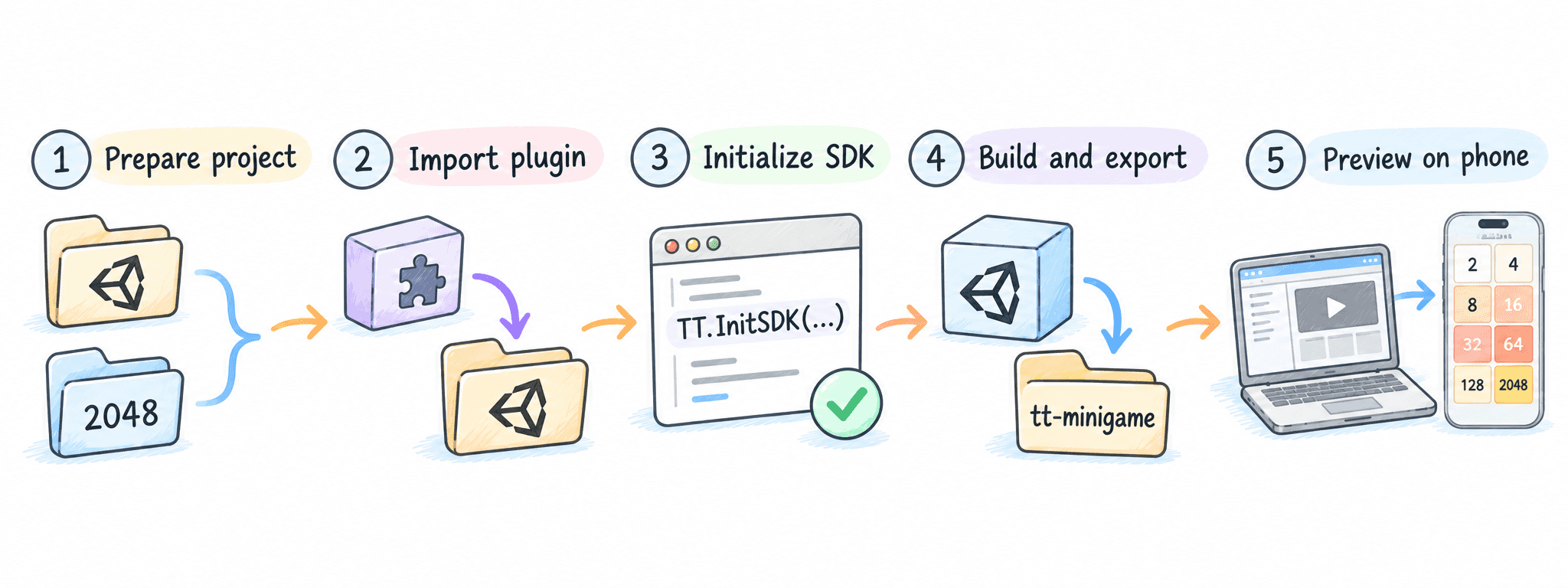
Set up your project, build it, and preview it in the TikTok app, as shown in the following image.
Prepare your project
- Your own project: Open your existing Unity project. If you have a source ZIP file, extract it and select the directory that contains
AssetsandProjectSettings. - 2048 sample: Download the 2048 sample, extract it, and select its project directory.
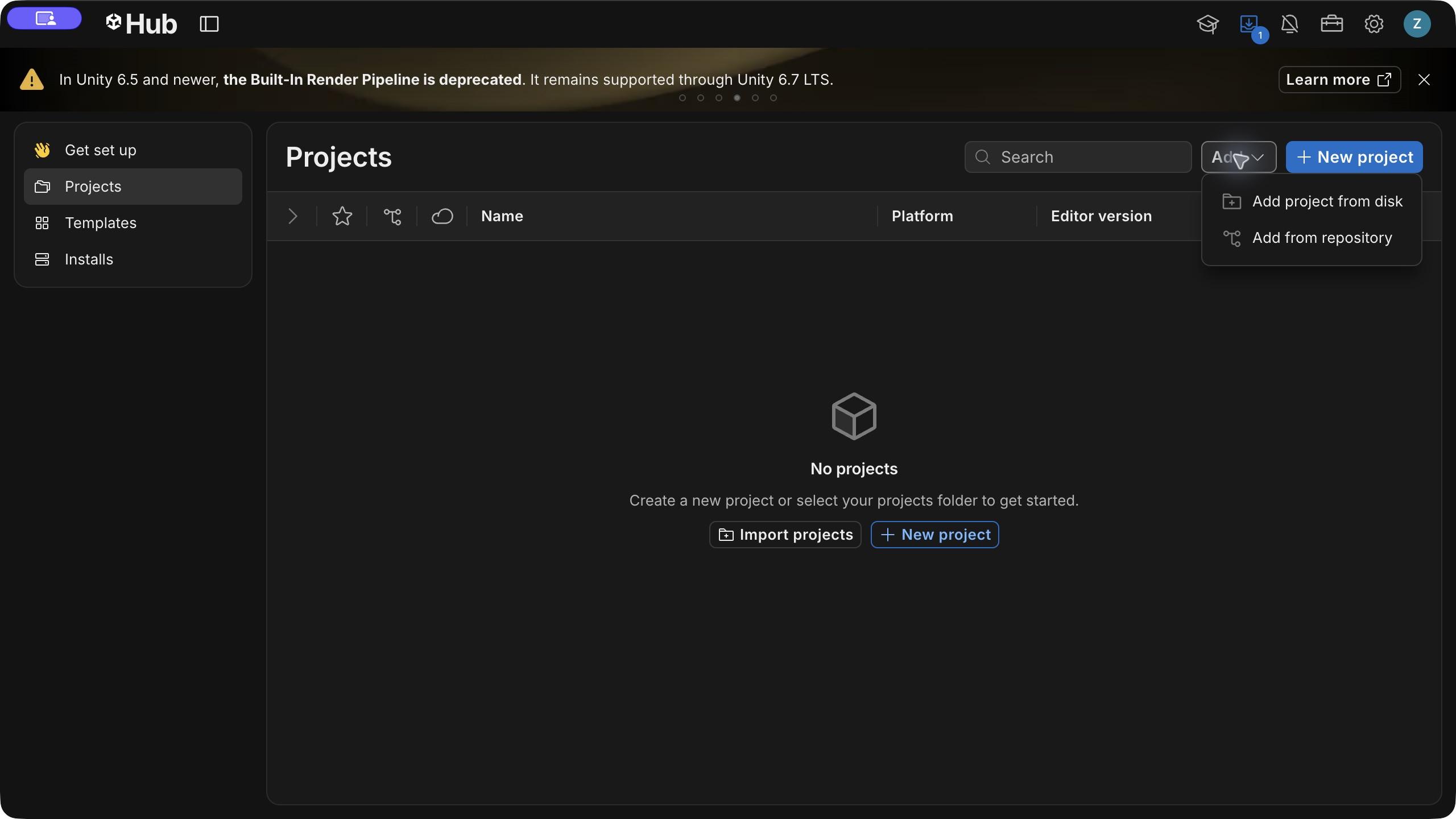
To add a project from disk, in Unity Hub, click Add > Add project from disk and select the project directory.
If you use your own project, check the following after you import the plugin and switch to WebGL:
- The Unity Console shows no compilation errors. Fix the first error before you continue.
- Adapt or replace any other platforms' SDKs or native plugins that prevent the game from building or running.
- If the game loads remote assets or saves data, plan to test those flows during phone preview.
Import the plugin
This guide uses TikTok SDK for Unity plugin 1.1.6 Release. If you use another version, check the API definitions in your installed plugin.
If the plugin is already installed under Assets/Plugins/com.tiktok.minigame, check the version field in its package.json file. If the file is missing, check the imported package or ask the project owner. If the installed version is correct, skip to step 3.
- Download plugin 1.1.6 Release.
- In Unity, click Assets > Import Package > Custom Package. Select the downloaded file and import all files in the package.
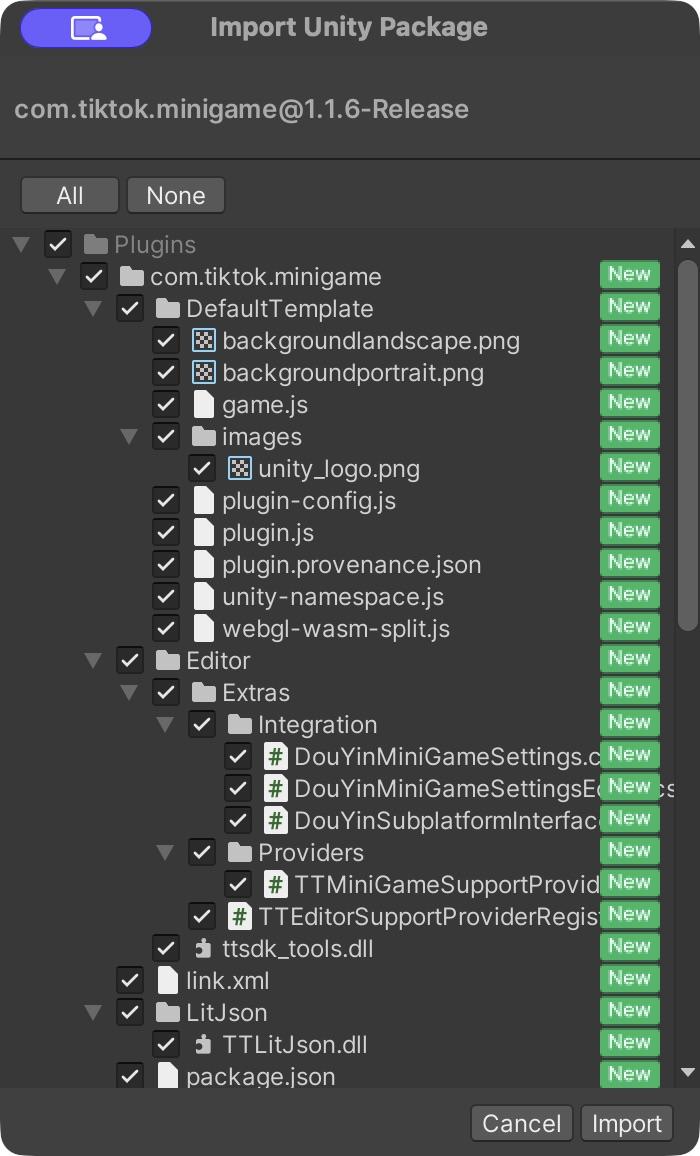
- Wait for Unity to finish compiling. The Console shows no compilation errors, and TikTokGame appears in the menu bar.
Initialize the SDK
If your project already calls TT.InitSDK, reuse its existing initialization. The 2048 and Sky Hop samples include their own initialization code, so don't add the following script to them.
- Save the following code as
TikTokSdkInit.csunderAssets:
using TTSDK;
using UnityEngine;

public class TikTokSdkInit : MonoBehaviour
{
  private void Start()
  {
    TT.InitSDK((code, env) =>
    {
      if (code != 0)
      {
        Debug.LogError("SDK initialization failed: " + code);
        return;
      }

      Debug.Log("SDK initialized successfully");
      // Start logic that depends on the SDK here
    });
  }
}TikTokSdkInit, and add it. The component appears in the Inspector panel.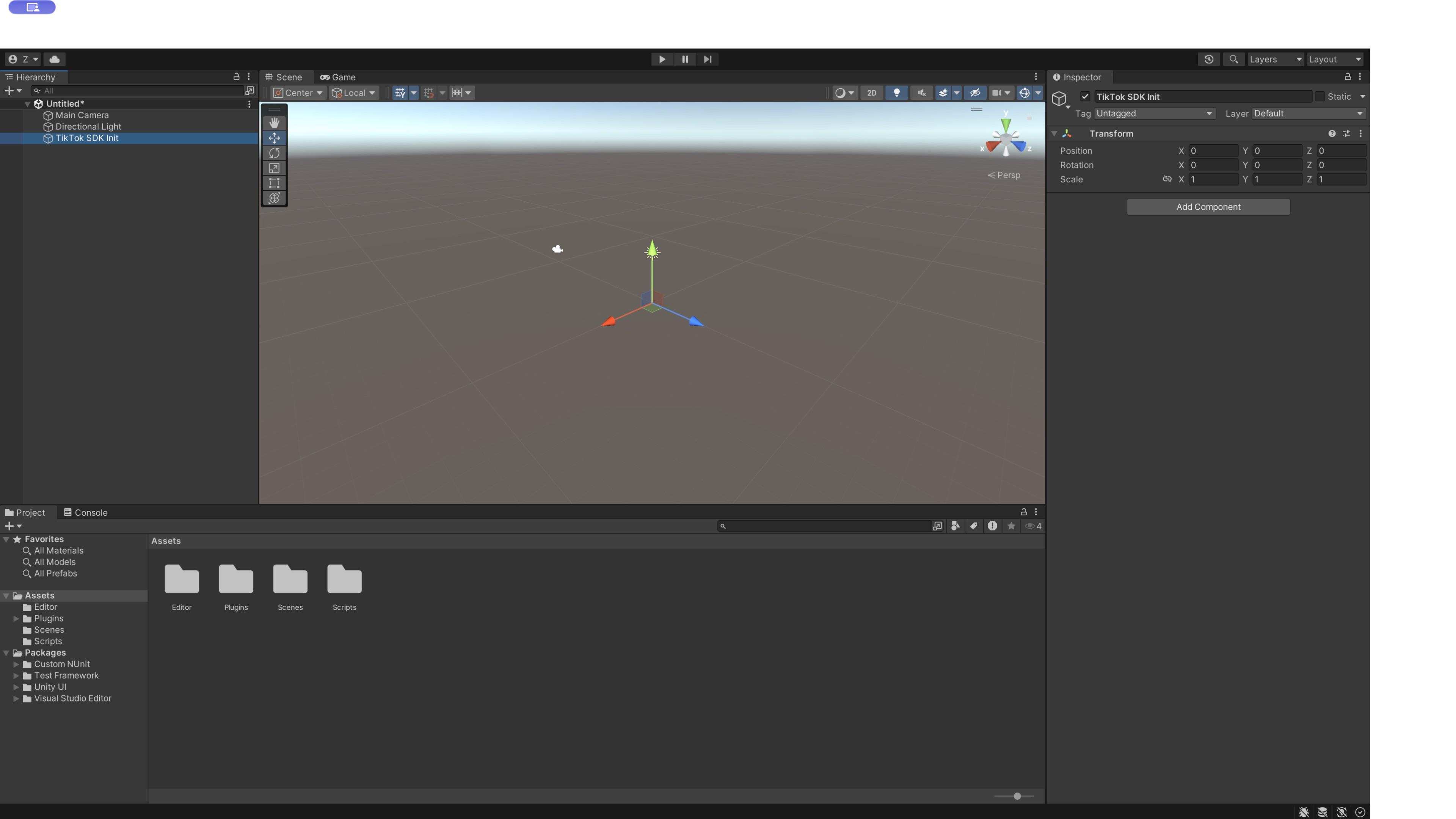
A callback code of 0 means initialization succeeded. Call TT.Login only after initialization succeeds. If another script calls it in Awake or Start, adjust the call order. Check the initialization requirements of other APIs before you call them.
To check initialization in the Unity Editor, click Play and check the result in the Console. The Editor returns a mock login result, which isn't a real login credential. Test platform features on a phone.
The 2048 sample doesn't call TT.InitSDK in the Editor. To check it on a phone, open vConsole and find the [QuickStart] TikTok SDK initialization code log. A code of 0 means initialization succeeded. Then check that you can move and merge tiles.
Note: If the same project also builds native Android or iOS apps, isolate using TTSDK and TT API calls. SDK 1.1.6 enables the TTSDK assembly for the Editor and WebGL only, so other builds fail if they reference it. Use conditional compilation or assembly definitions to keep your existing startup logic for other targets. Standard WebGL builds and TikTok builds both define UNITY_WEBGL. If your project targets both, define your own compilation symbol to tell them apart.
Switch to WebGL
Before you build, stop any DevTool instance that is reading an earlier build. The following steps use Unity 2021 and 2022. In Unity 6, use File > Build Profiles > Web. For details, see Unity's Web build settings.
- Switch the build target to WebGL.
- Your own project: In File > Build Settings, select WebGL and click Switch Platform.
- 2048 sample: Click Demo > Open Demo Scene, then click Demo > Prepare TikTok. This sets the sample scene as the build scene and switches the project to WebGL. Skip step 2.
- Open the startup scene. In File > Build Settings > Scenes In Build, click Add Open Scenes, drag the startup scene to the top, and keep it selected. Add other scenes as needed. In Unity 6, the scene list is in File > Build Profiles > Platforms > Scene List.
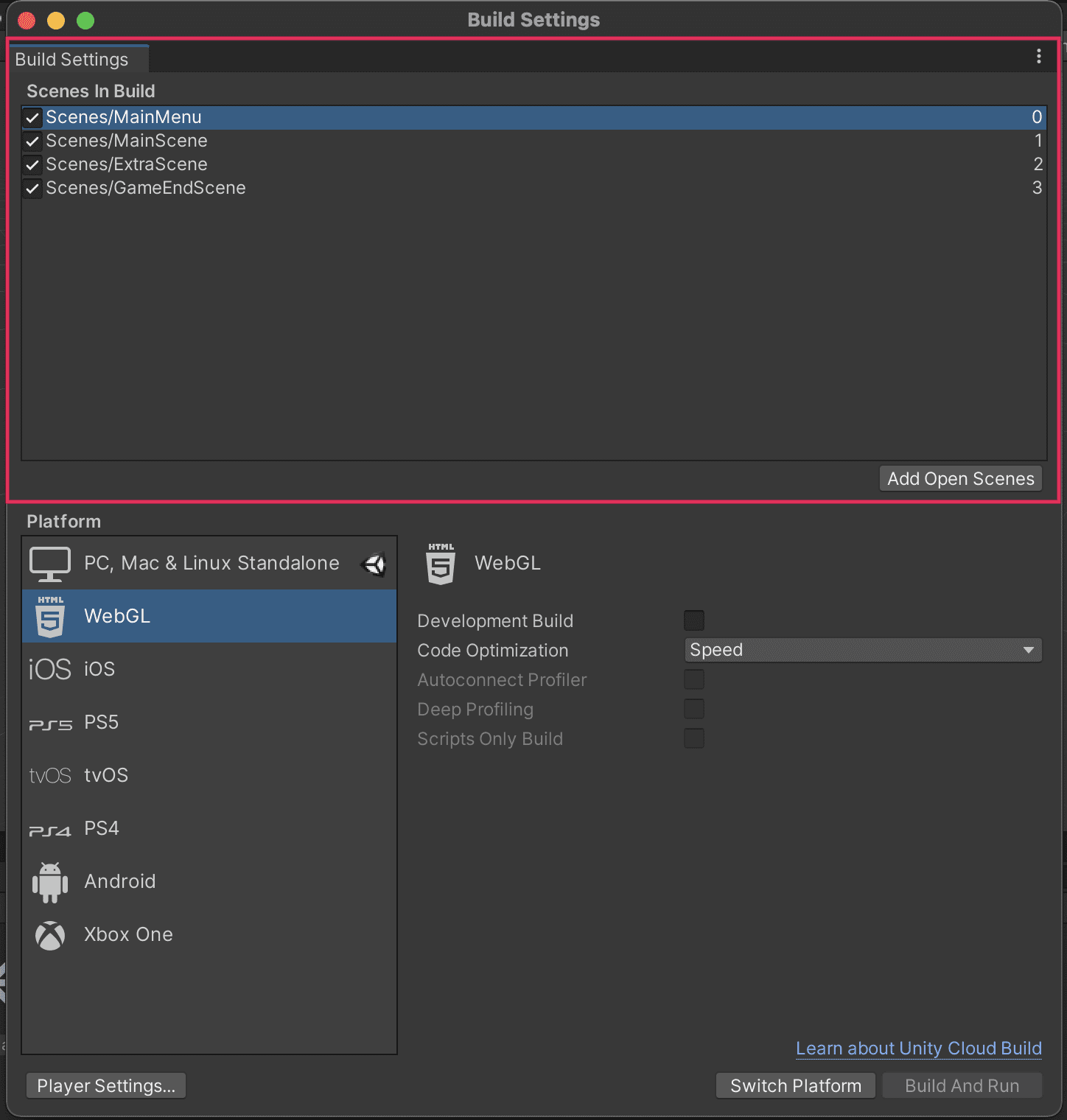
Configure export settings
Click TikTokGame > Build Minigame and set the following:
Setting | Value |
Game AppId | Your client key, from Basic information > Credentials on the Developer Portal. Use the same client key when you start DevTool. |
WebGL Output | A separate physical directory outside the project. The path must not contain symbolic links. |
UnityHeap | For a first build, keep the default. For an existing project, keep its tested value. |
Build Option | None |
Cache domain List | Configure based on your caching needs. This setting doesn't register trusted domains. For the 2048 sample, leave it empty. |
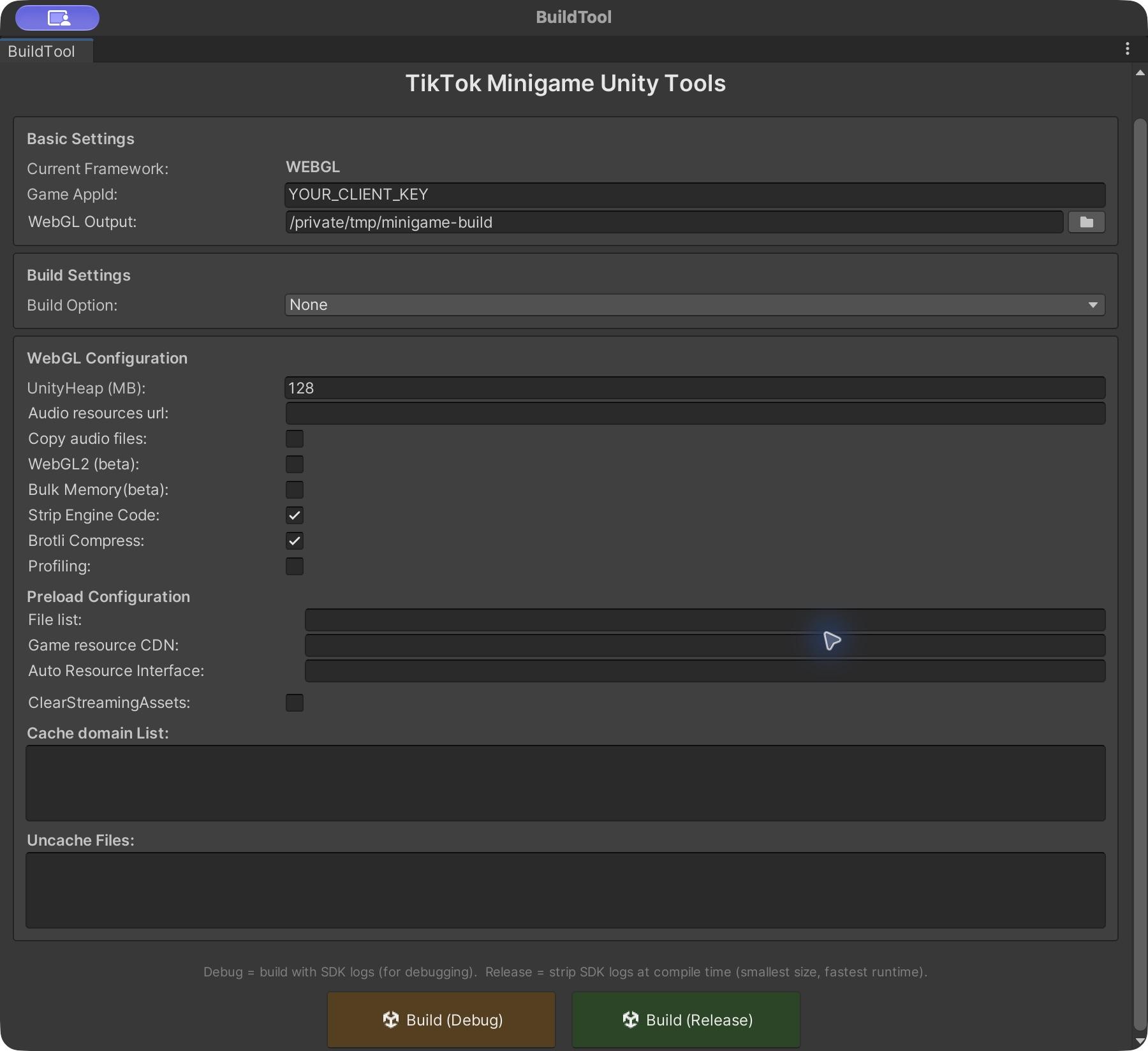
Export the package
Before you build, check your network and asset settings:
- Network requests: If your game makes network requests, register the request domains on your app's Development configuration > Security page before testing. For steps, see Set Up Development Configuration.
- Remote assets: If your game loads remote assets, deploy files that match this build over HTTPS and check their URLs. If you use Addressables, follow Unity's Addressables 1.21 remote content documentation and upload the catalog, hash, and bundles. Test loading on a phone.
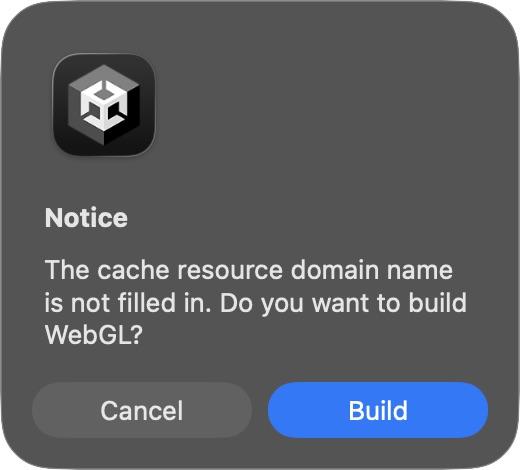
- Cache domain List: Configure this setting based on your caching needs. It doesn't register trusted domains. For the 2048 sample, leave it empty.
To export the package:
- In the Build Minigame panel, click Build (Debug).
- If you left Cache domain List empty on purpose, click Build when prompted to continue. The 2048 sample doesn't use remote assets, so it can build with an empty list.
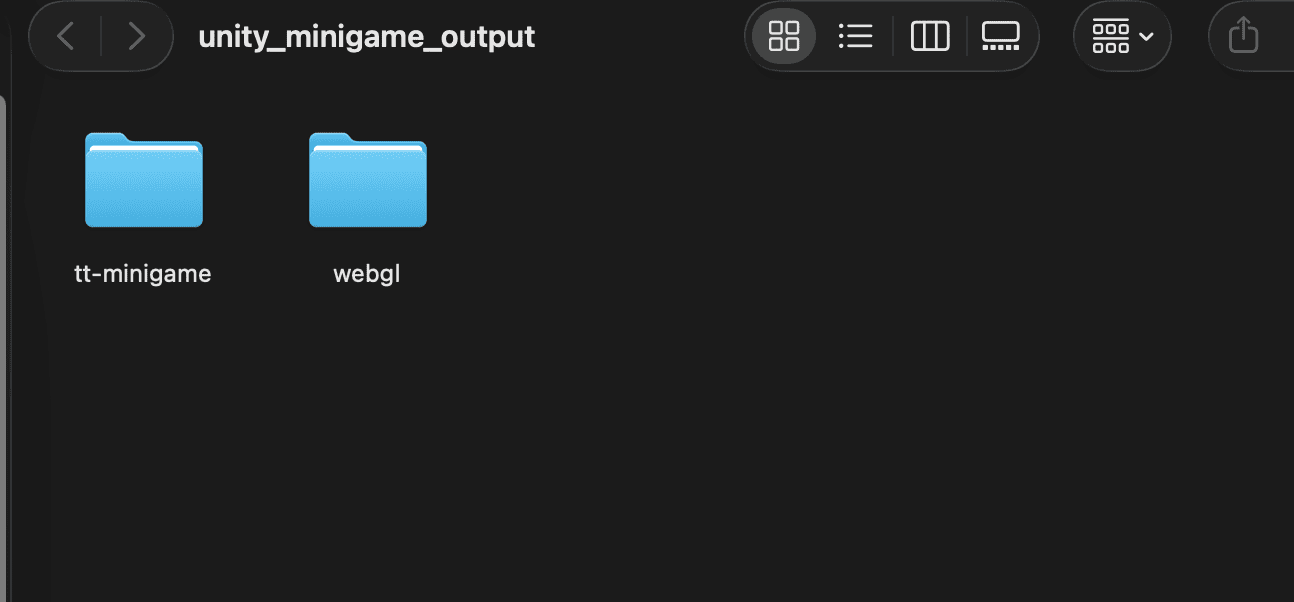
- Check the output directory and confirm.
When the build succeeds, the Console shows [Builder] build successfully! and the output directory contains a tt-minigame directory. Check that its game.json file lists three subpackages: wasmcode, data-package, and StreamingAssets. If the build fails, fix the first Console error and build again.
Note: If you turn on Wasm code splitting (enableWasmSplit: true), keep bulk memory turned off (enableBulkMemory: false), and preserve the serialized data types your game uses for saves in Assets/link.xml so IL2CPP managed code stripping doesn't remove them. For details, see Split Wasm code.
You start DevTool from the tt-minigame directory in the next step.
Preview on your phone
Use Client preview in DevTool to test routine changes. Make changes to C# code, scenes, and assets in the Unity project and build again. Don't edit the generated tt-minigame directory, because each build replaces it.
If the first playable scene requires login, network access, or another platform feature, integrate and configure that feature before you preview. You can add other features after the core scene runs.
- In a terminal, go to the
tt-minigamedirectory and start DevTool. ReplaceCLIENT_KEYwith your app's client key.
ttmg dev --client-key CLIENT_KEY- Open the DevTool address shown in the terminal and go to Project overview. If project details don't load, check that your developer account can access this app. To refresh the session, run
ttmg loginand restartttmg dev. - Check that the app and client key match the ones you used for the build.
- Go to Start debugging and keep the Normal launch mode.
- On the Developer Portal, open your app and go to Roles and access > Test accounts.
- Add a test account, then scan the Developer Portal QR code with that account to authorize it. In DevTool, select Client preview and scan the QR code on the page with the same account.
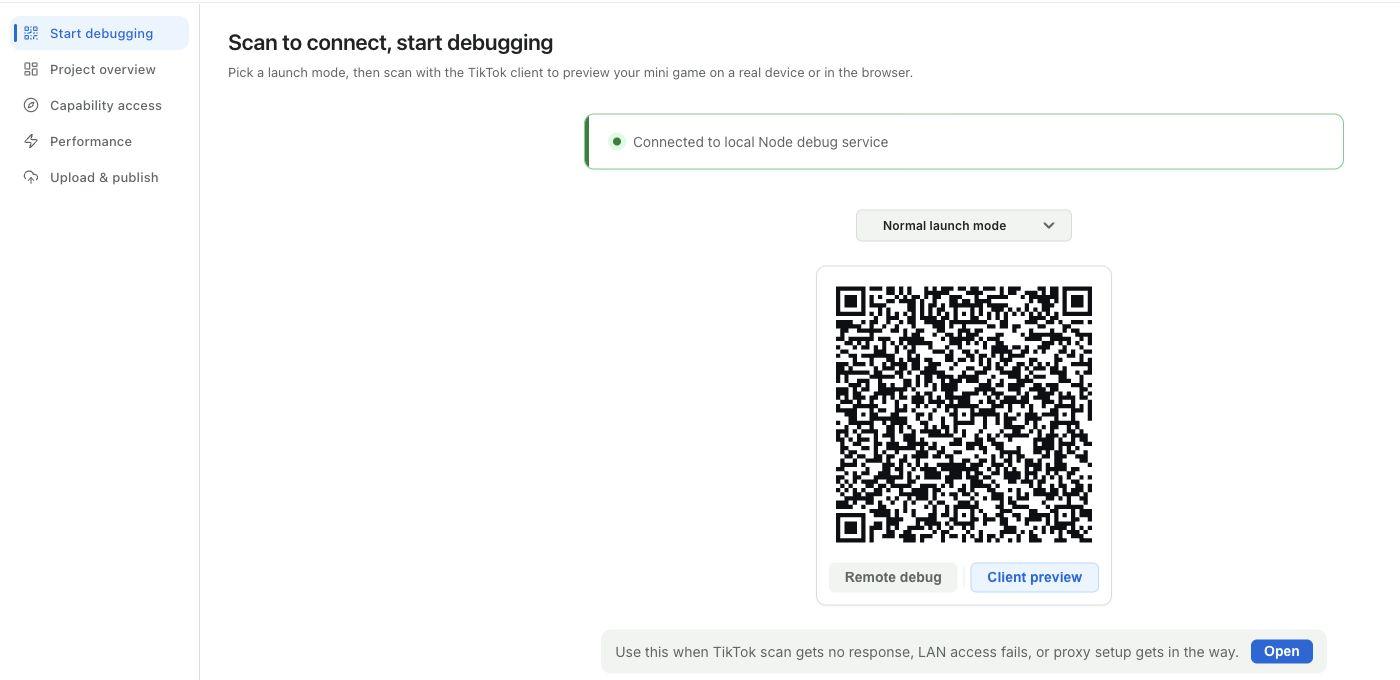
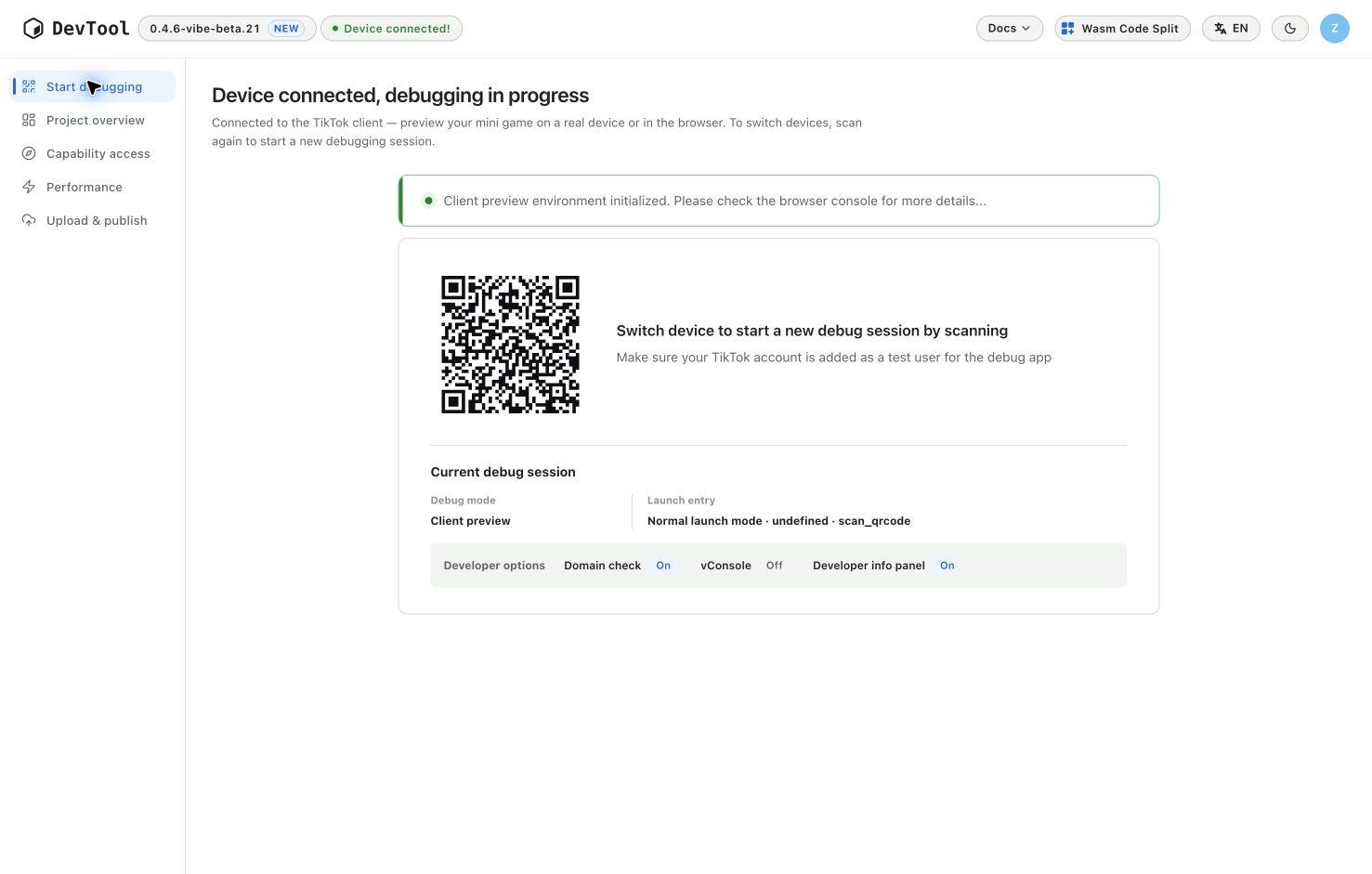
When DevTool shows Device connected, test the startup scene, touch controls, and a complete round on the phone:
- If your project uses
TTAPIs, check that SDK initialization succeeded. - If the game saves data, save, exit, and reopen the game to check that the data persists.
- For the 2048 sample, check that you can move tiles, merge them to score, and tap Restart.
- If the developer information panel covers the game, collapse it.
If the game doesn't open or controls don't respond, open vConsole on the phone from … > Developer Options and check the first error. If you added the initialization script, you can check its result there. For Unity build and runtime issues, see Troubleshooting.
Phone preview tests Unity runtime behavior. Remote debugging lets you inspect JavaScript bridge code and network requests in the exported package. For connection steps, launch parameters, and debug modes, see Debug Your Mini Game.
Release your game
Before release, integrate the platform features your game needs and test them with DevTool. For the features and their APIs, see Integrate platform features.
To prepare and release a build:
- In TikTokGame > Build Minigame, set Build Option to None and click Build (Release).
- If you use Wasm code splitting, repeat function collection, splitting, and validation for the release build. See Split Wasm code.
- Deploy the remote assets that match this build, and check their URLs from your target regions.
- Test the release build on a phone with Client preview, then upload the package.
- On the Developer Portal, open Code version and check that the upload appears under Preview. Click Preview on that version and scan the QR code with an authorized test account. Test core gameplay and the platform features your game uses.
- Submit the same tested version for review. After approval, release it according to the release mode you selected.
Client preview runs a local package and requires DevTool to keep running. Preview on the Developer Portal runs the uploaded version.
Caution: Keep remote assets that older live builds reference for as long as those builds can still run or might be needed for rollback. Test both versions before you remove old assets. If old and new builds share a remote catalog, test that catalog updates work with both.
Try the 2048 sample
Use the 2048 sample to try the integration flow from start to finish. Open the project directory from the ZIP file in Unity 2022.3.62f3 and follow Run your game on a phone. The sample doesn't include the SDK plugin, so import it as described in Import the plugin.
Download: unity-2048-sample-en.zip
Troubleshooting
For account access and QR code connection issues, see Debug Your Mini Game and Development Troubleshooting.
Problem | What to check |
The TikTokGame menu is missing, or | Check that you imported the entire plugin, and fix any compilation errors in the Console. If you use an assembly definition ( |
The build didn't generate | Check that you used TikTokGame > Build Minigame, and check the output directory. Check the first error in the Console. If the output path includes a symbolic link, choose a physical path and build again. |
The game is stuck at startup, or initialization fails on the phone | Check the first error in vConsole on the phone, then check the entry scene and resource requests. If the game uses |
The phone shows old content after a rebuild | Stop the previous DevTool session, restart DevTool from the new |
If you can't identify the issue, contact TikTok developer support. Include your Unity, SDK plugin, and build versions, the steps to reproduce the issue, and the first error log.
Next steps
- Integrate platform features, reduce build size and startup time, and split Wasm code in Integrate and Optimize Your Unity Mini Game.
- Check method signatures in the TikTok SDK for Unity reference.
- Prepare for review with the Acceptance Testing Guidelines.