
Mini Games Quickstart
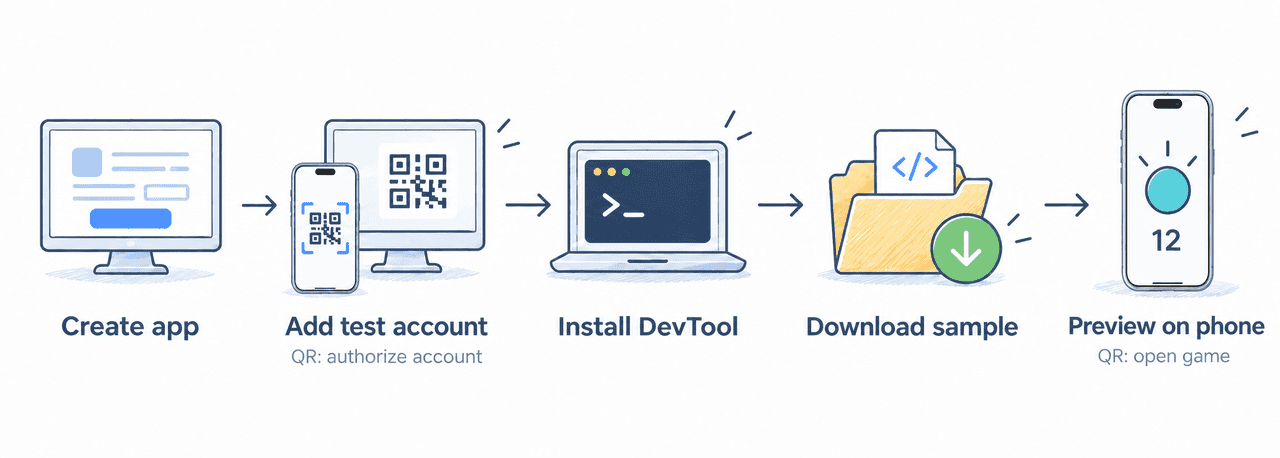
Run your first mini game in the TikTok app. Choose a Unity, JavaScript WebGL, or Canvas 2D sample, then preview it on your phone.
Setup uses two QR codes. The authorization QR code in the Developer Portal adds your phone's TikTok account as a test account. The Client preview QR code in DevTool opens the game on that phone.
Prerequisites
- A TikTok for Developers account
- A phone with the latest version of the TikTok app installed and signed in
- A computer with Google Chrome and Node.js installed
- A network where the phone can reach the computer, such as the same Wi-Fi network
- For the Unity sample: Unity 2022.3.62f3 with WebGL Build Support
Create a mini game app
- Go to TikTok for Developers, sign in, and go to Developer Portal > My organizations.
- Open your organization. If you don't have one, create an organization. For details, see Prepare Your Developer Account. You can also ask an organization admin to invite you from Members > Invite member.
- In the organization, go to Overview and select Create app.
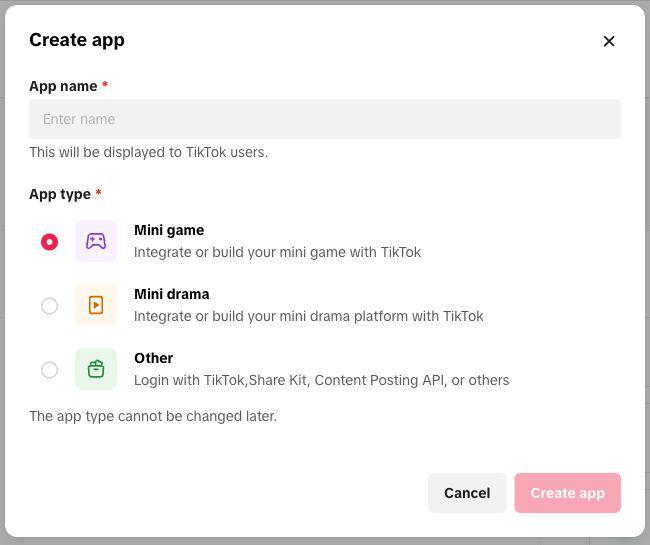
- Enter an App name, select Mini game as the App type, and select Create app.
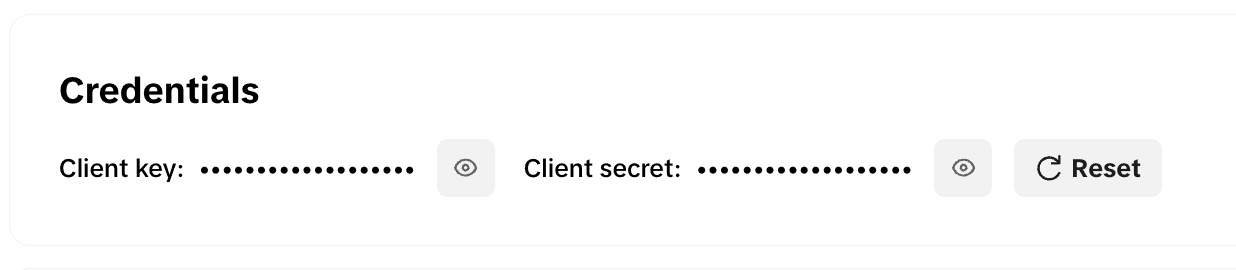
- Go to Basic information > Credentials. Select the eye icon next to Client key and copy the client key. You use it when you start DevTool. Don't copy the client secret.
If you can't find the organization or app, ask your organization admin for access. Sign in to DevTool later with the same developer account.
Add a test account
Your developer account manages the app on the Developer Portal. The TikTok account on your phone opens test versions of the game. Add the phone's account as a test account so it can open the game before release.
- On your phone, sign in to the TikTok app with the account you want to test with.
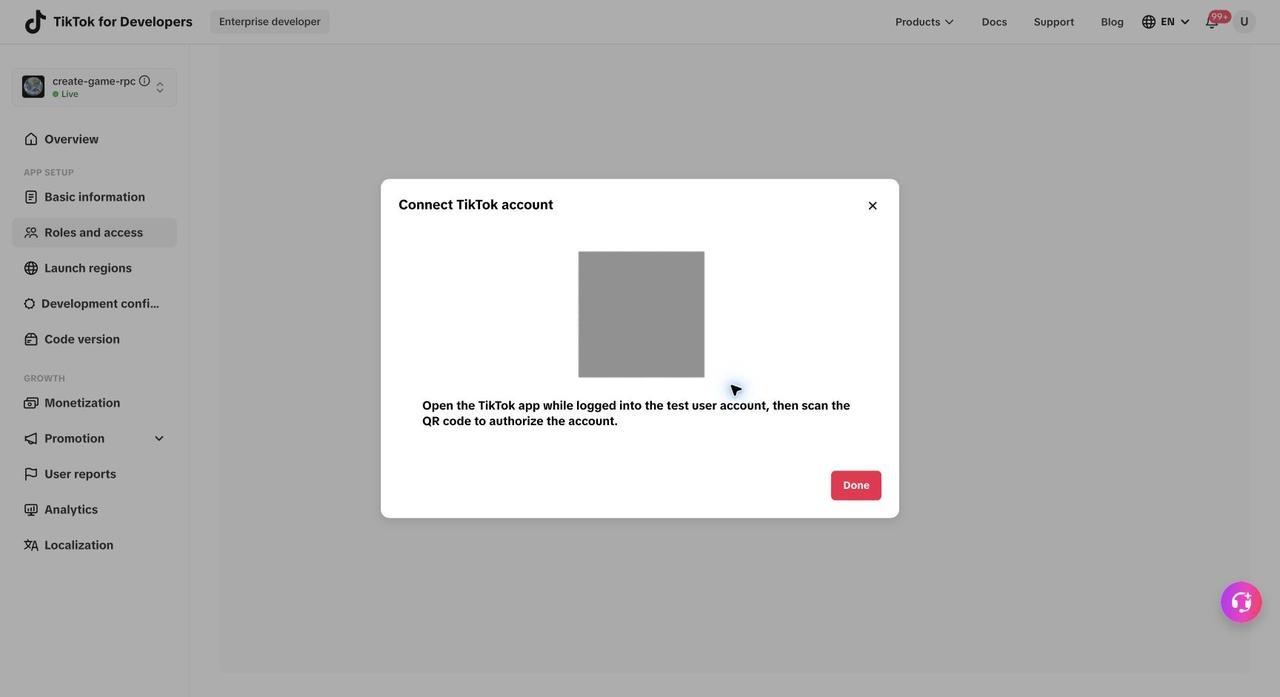
- On the Developer Portal, open your app and go to Testing permissions or Roles and access > Test accounts. Select Add a test account. Some pages show this button as Add test user.
- In the Connect TikTok account dialog, scan the QR code with the TikTok app on your phone. Scan the QR code on your screen.
- On your phone, the Authorize with TikTok screen opens. Check that the account and app are correct, then select Continue.
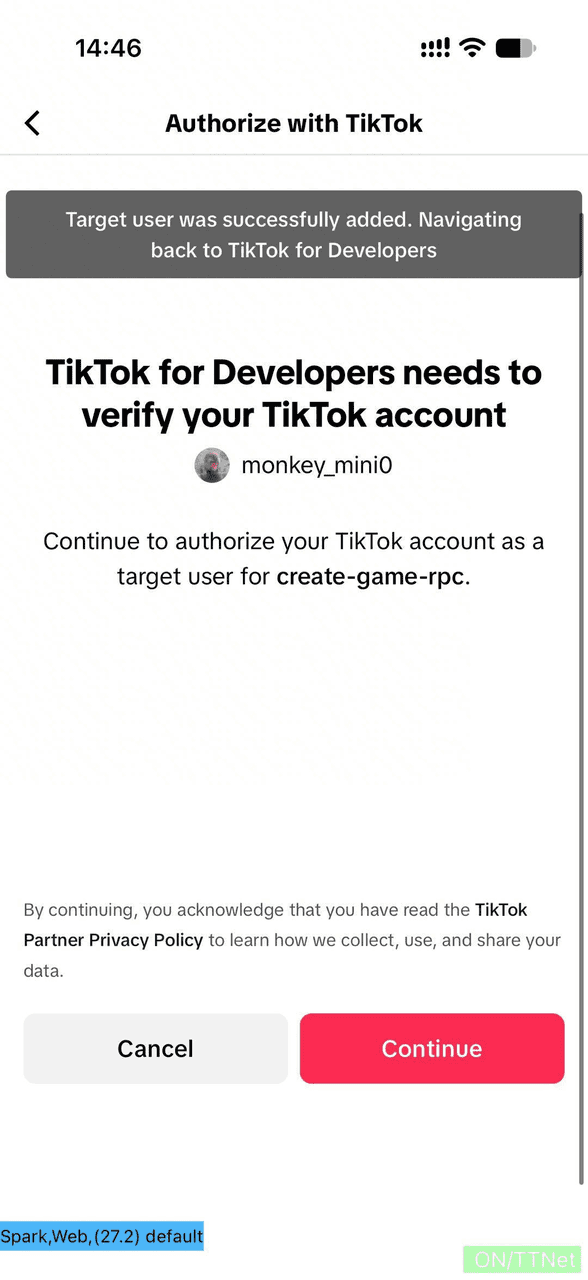
- When the Developer Portal shows that the test account was successfully added, select Done.
- In the test account list, check that the account is listed and that Authorization includes Debugging & testing.
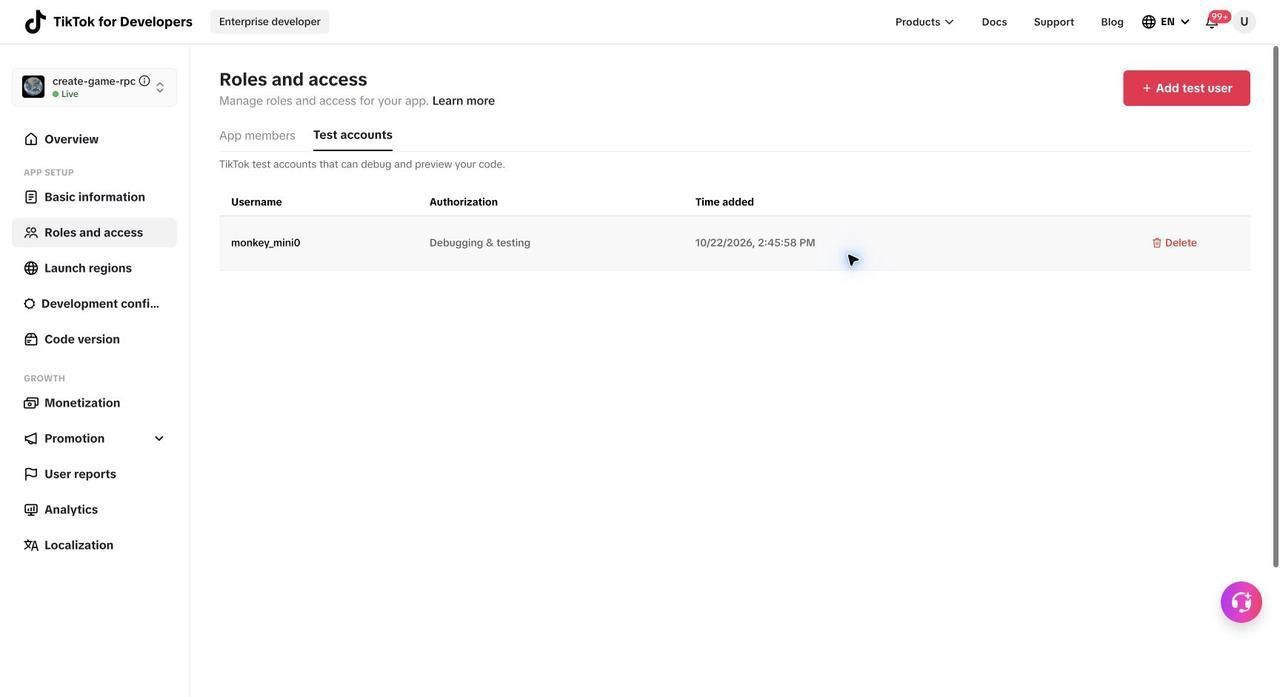
For more about test accounts and debug modes, see Debug Your Mini Game.
Install DevTool
DevTool runs on your computer through the @ttmg/cli command-line tool. Install the latest stable version on a supported Node.js LTS version.
- Check your Node.js version and the version that the latest
@ttmg/clirequires:
node -v
npm view @ttmg/cli@latest engines --json --registry=https://registry.npmjs.org/
If your Node.js version doesn't meet the requirement, install a supported Node.js LTS version.
- Install DevTool and check the installed version:
npm install -g @ttmg/cli --registry=https://registry.npmjs.org/
ttmg -v- Sign in with your developer account and check your sign-in status:
ttmg login
ttmg auth status
If installation or sign-in fails, see Debug Your Mini Game.
Download a sample
Each sample archive includes a README.
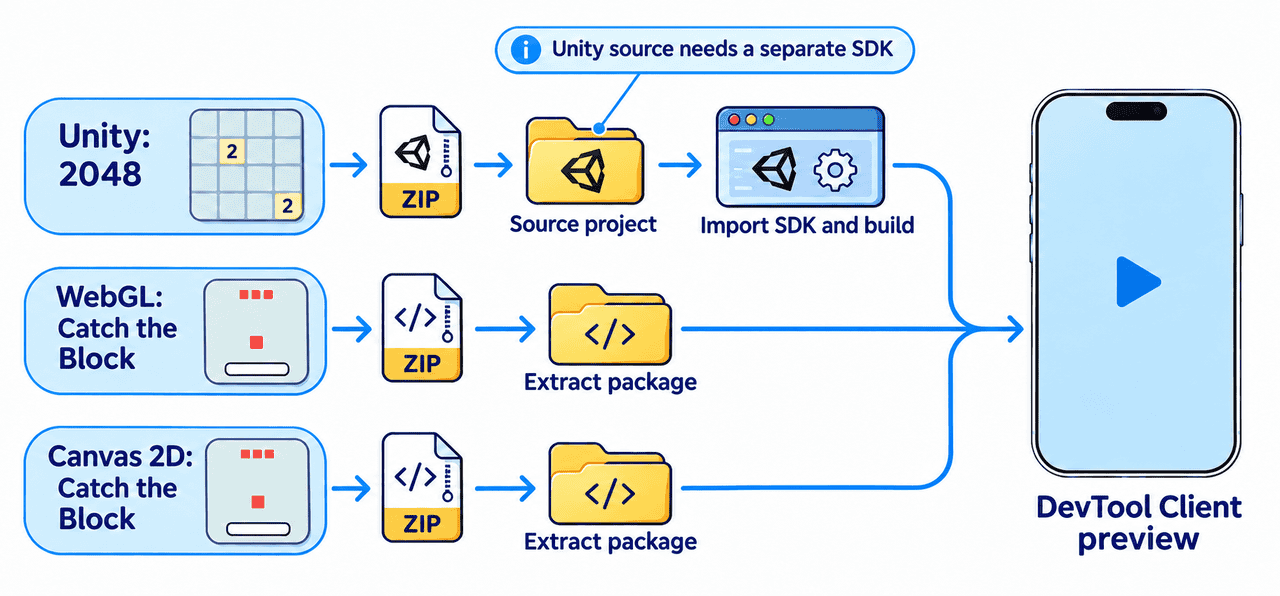
Sample | Download | What's included |
Unity: 2048 | A Unity source project. You build the mini game package in Unity. The archive doesn't include the TikTok SDK for Unity. | |
WebGL: Catch the Block | A prepared mini game package that draws with WebGL directly, without an engine or Wasm. | |
Canvas 2D: Catch the Block | A prepared mini game package that draws with the mini game Canvas 2D API. |
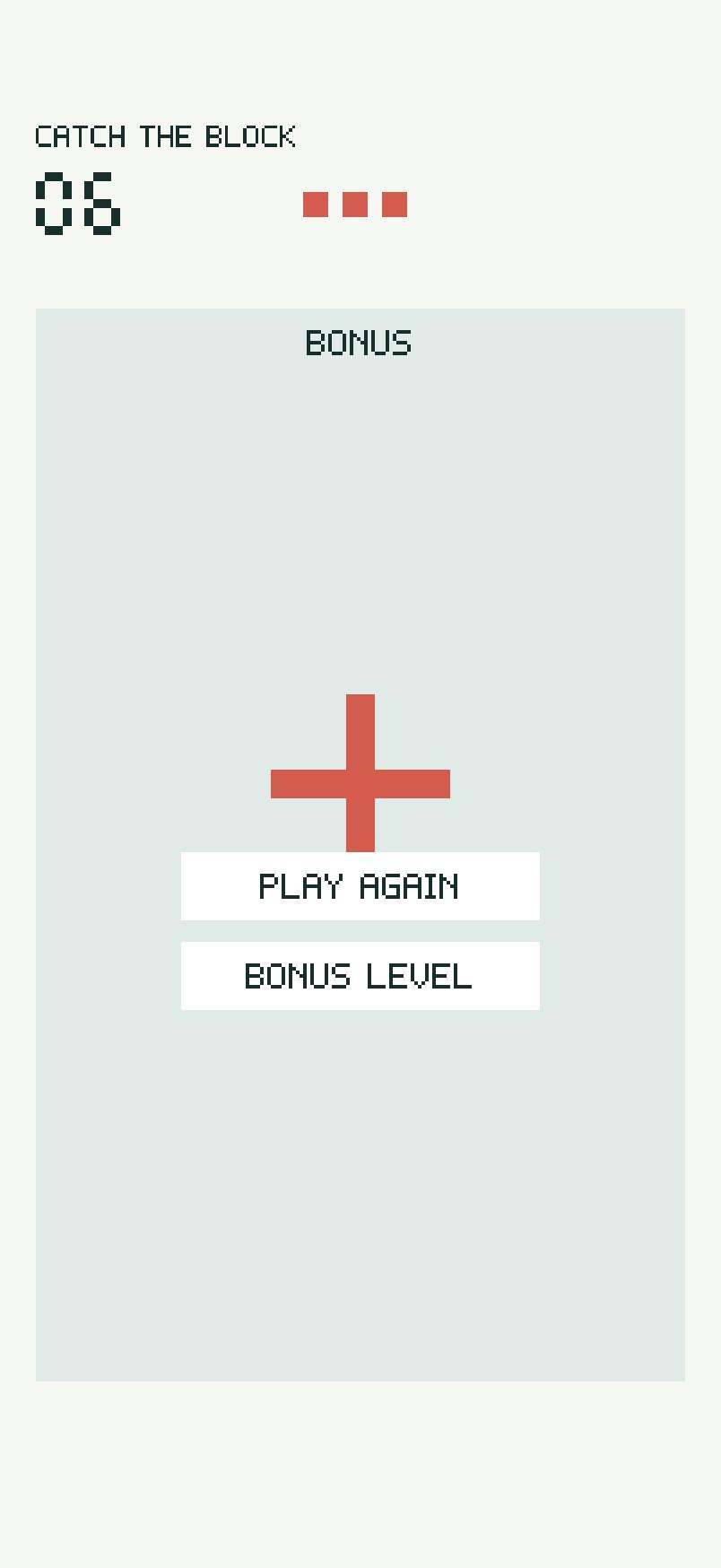
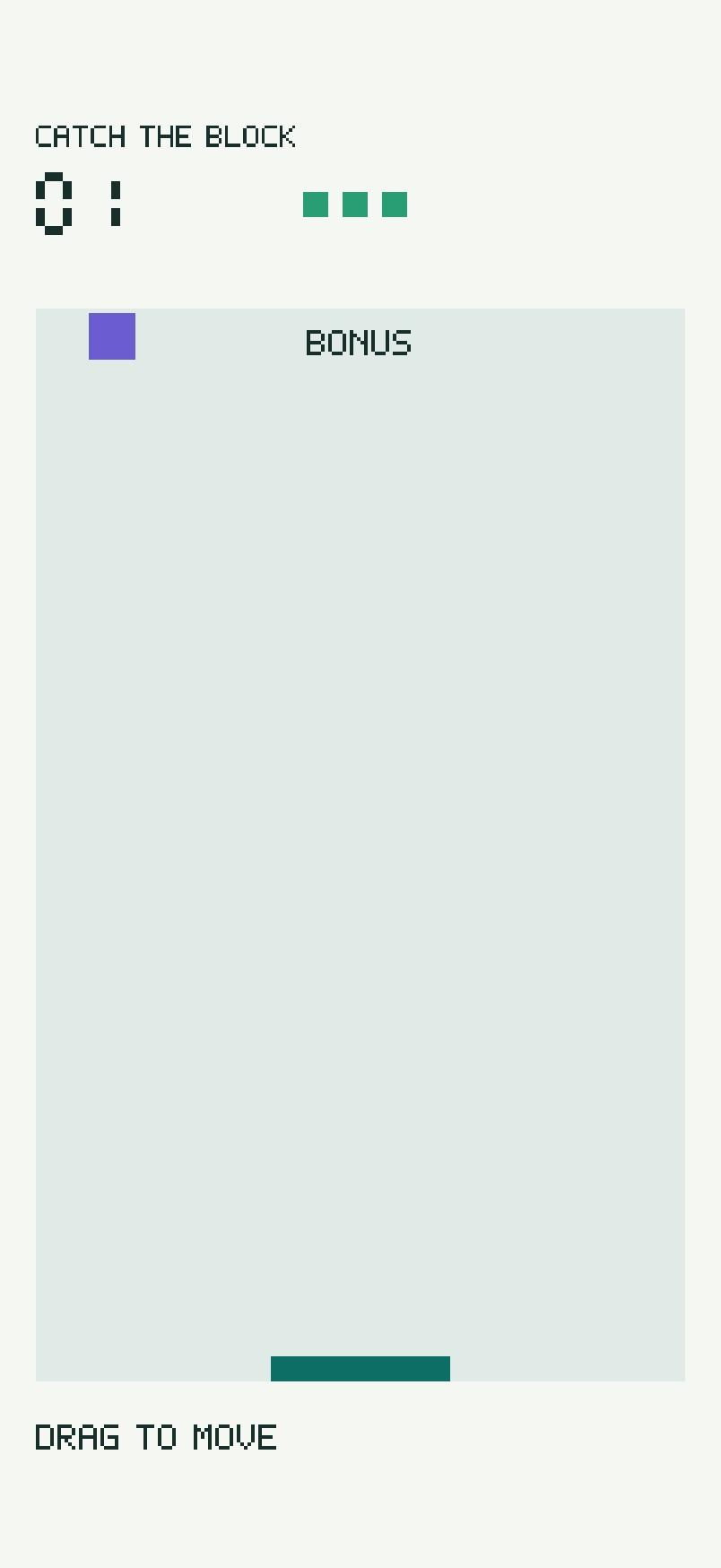
In both Catch the Block samples, you drag the paddle to catch falling blocks. After three misses, BONUS LEVEL loads a small subpackage, and PLAY AGAIN restarts the game. The score is kept in memory only.
For a JavaScript sample, unzip the archive. The unzipped folder is the package directory you start DevTool from.
Build the Unity sample
- Download the TikTok SDK for Unity 1.1.6 Release.
- Open the sample project in Unity. Open
Assets/Scenes/Demo.unityand select Play to check that the game runs in the Unity Editor. - Import the SDK package, then select Demo > Prepare TikTok.
- Select TikTokGame > Build Minigame. Enter your client key and choose an output directory outside the source project.
- When the build finishes, find the generated
tt-minigamedirectory. You start DevTool from this directory.
Editor preview doesn't test the game in the TikTok app. Use Client preview in the next step.
Note: The sample is built with bulk memory turned off. Builds with bulk memory turned on might not support subpackages. For details, see Build Mini Games With Unity.
Preview on your phone
- In a terminal, go to the package directory and start DevTool:
cd "PACKAGE_PATH"
ttmg dev --client-key CLIENT_KEY
Replace the following:
PACKAGE_PATH: the unzipped JavaScript sample folder, or thett-minigamedirectory for the Unity sample.CLIENT_KEY: your app's client key.
- Open the DevTool address shown in the terminal. In Project overview, check that the app name and client key match your app.
- Go to Start debugging, keep the Normal launch mode, and select Client preview.
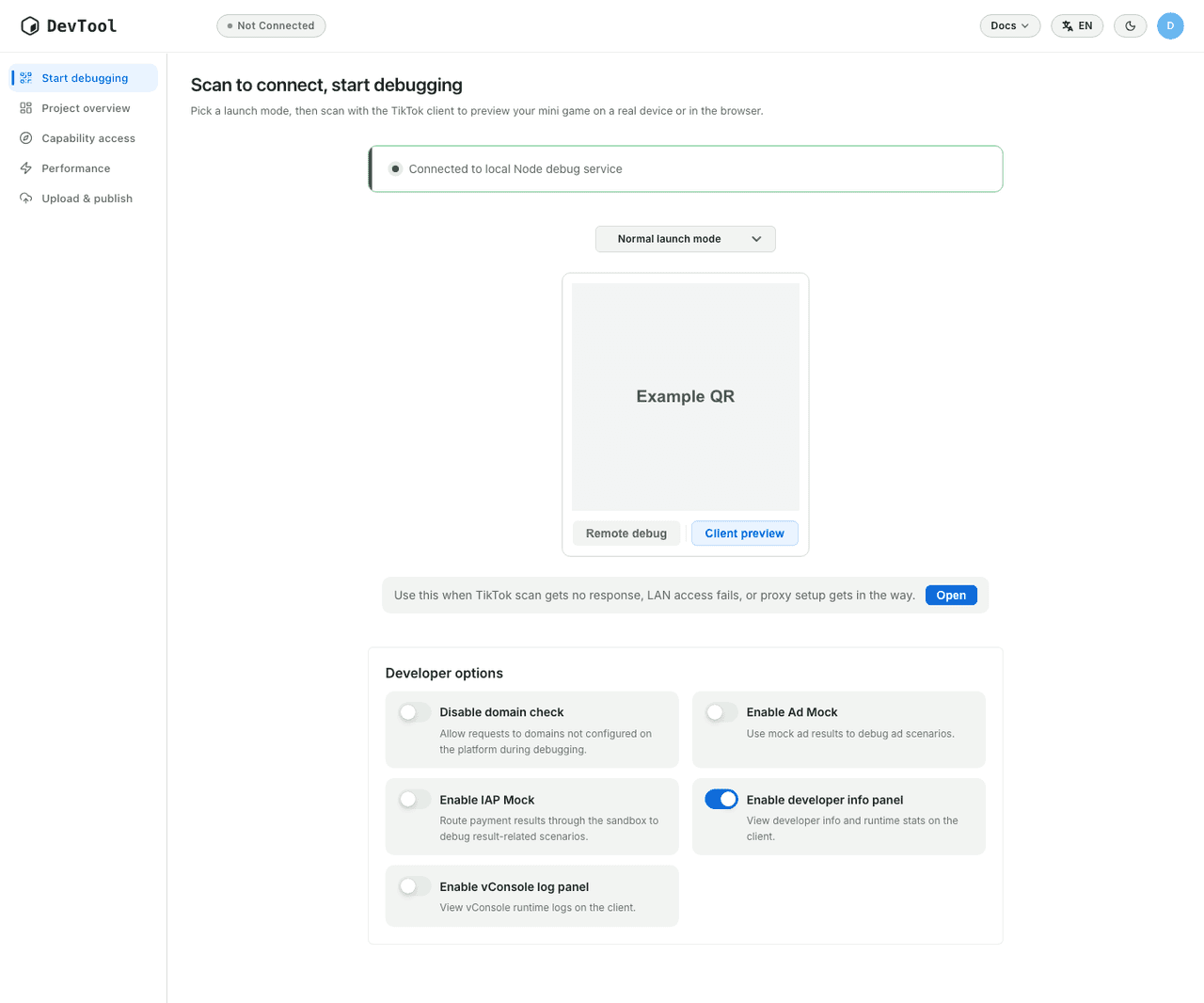
- Scan the QR code with the TikTok app, using the test account you added. Wait until DevTool shows Device connected.
- Play the game on your phone:
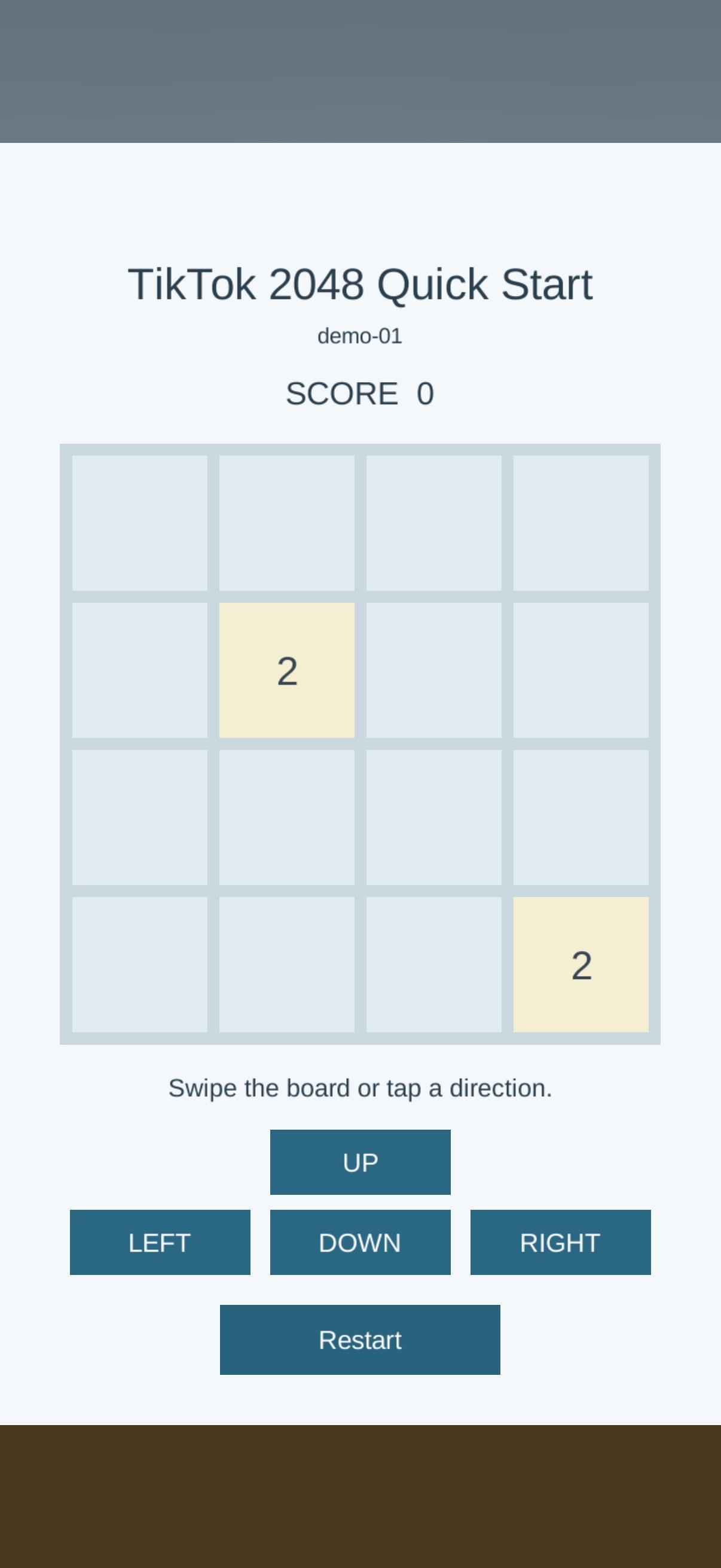
- 2048: Swipe. The tiles move and merge.
- Catch the Block: Catch a block. The score increases.
Modify the sample (optional)
Make a small change to check that your edits reach the phone.
- Make one of the following changes:
- JavaScript samples: In
game.js, changecolors.blockfrom[0.95, 0.52, 0.3, 1]to[0.2, 0.5, 0.9, 1]. - Unity sample: In
Assets/Scripts/DemoSettings.cs, changeTitle.
- Apply the change:
- JavaScript samples: Wait for DevTool to recompile.
- Unity sample: Build again, then restart DevTool from the new
tt-minigamedirectory.
- On your phone, exit the game and scan the QR code again. The block is blue, or the title shows your change.
Local changes don't update an uploaded preview version or a released version.
Troubleshooting
Problem | Check and resolve |
A permission error appears on the phone. | Check that the phone's account is in the test account list with Debugging & testing, and that DevTool uses your app's client key. |
The QR code expired, or the phone doesn't connect. | Keep |
Changes don't appear. | Check that you edited the project DevTool is running, wait for the recompile to finish, then exit the game and scan again. Local changes don't update preview or released versions. |
The game displays incorrectly. | Check that you selected Client preview. On the phone, open … > Developer options and turn on vConsole to check the first error. Check the entry file and asset paths. |
Next steps
- To adapt your own game, see Develop Your Mini Game.
- To upload, test, and submit your game, see Release Your Mini Game.