
Mini Games Technical Overview
Mini games on TikTok run inside the TikTok app and are not distributed as standalone apps through an app store. The code package contains the game and engine code. The runtime loads and schedules that code. The TikTok app performs rendering, audio, input, file, and network operations. You can build your game in Cocos Creator, LayaAir, or Unity, then publish it as a code package.
For more information on mini game app registration, account eligibility, and platform features such as login, advertisement, and purchases, see the corresponding integration guides.
Important: Do not use HTML to build mini games. A regular web build, an unadapted Unity WebGL build, or a native app package cannot be delivered directly as a mini game code package.
Understand how mini games work
Every time a mini game session launches, it begins from a specific user entry point. The TikTok app selects an available version and obtains its code package. The runtime creates a game instance and executes JavaScript or WebAssembly.
The TikTok app then returns input and asynchronous results to that instance. The code package, runtime, and TikTok app have different responsibilities, so check them separately when troubleshooting.
Key terms
- Source project: The project in which you maintain scripts, scenes, assets, and engine settings. Make game logic and asset changes here.
- Code package: The directory delivered to DevTool and the release process after being built, which contains entry points, configurations, JavaScript or WebAssembly, adaptation or bridge code, and bundled resources. Both debugging and release operations are performed targeting the code package.
- Runtime: The environment built into the TikTok app that is responsible for loading code packages, creating game instances, executing JavaScript/WebAssembly, and scheduling frames, scheduled tasks, input events and asynchronous results.
- Engine runtime code: The code provided by Cocos Creator, LayaAir or Unity for scenes, scripts, animations and rendering that is delivered along with the code package. It is not a runtime built into the TikTok app.
- TikTok app: The user version of the TikTok app that hosts the runtime and leverages device capabilities to handle rendering, audio, input, file, and network operations. Mini games cannot directly access or manipulate device resources without going through the TikTok app.
- Developer server: An independently deployed game backend that provides business data such as sessions, save files, and leaderboards. It is not included in the code package, and the game's network requests are sent by the TikTok app.
- DevTool: A debugging and testing tool from TikTok's developer platform that connects the local code package with the TikTok app, enabling functions including log and network request viewing, remote debugging, real-device preview, code pre-check and upload.
Code execution
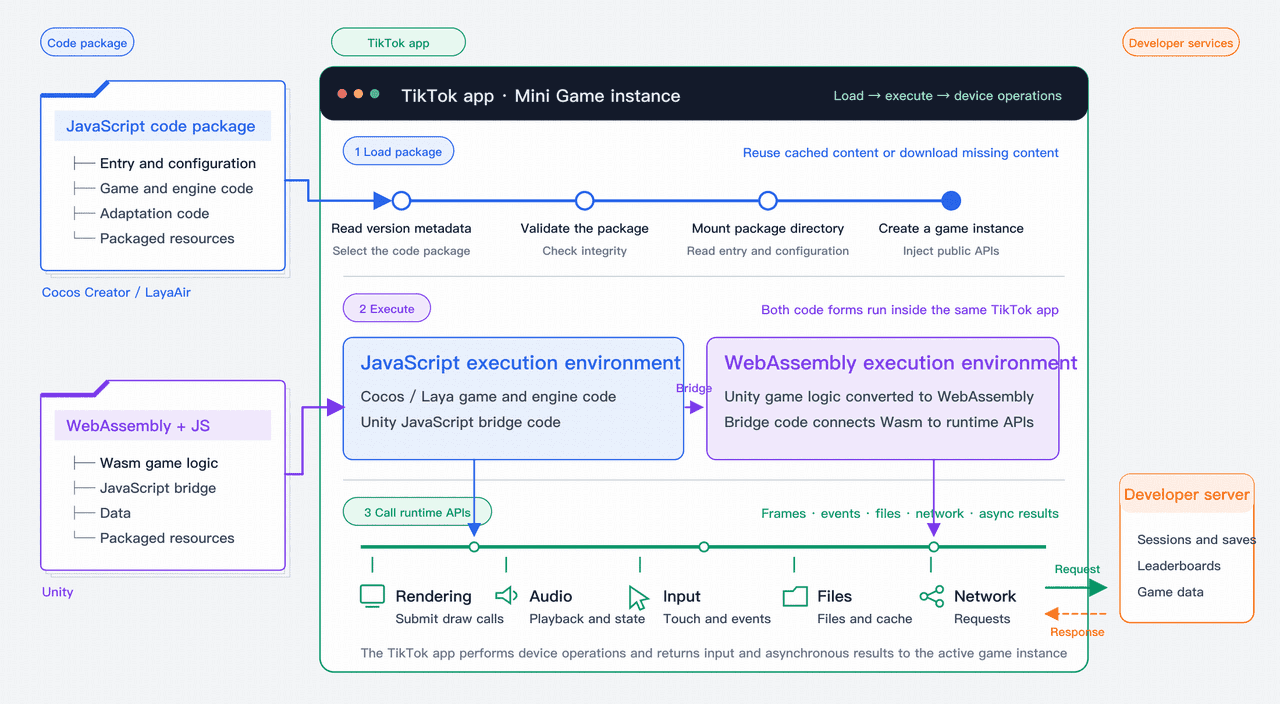
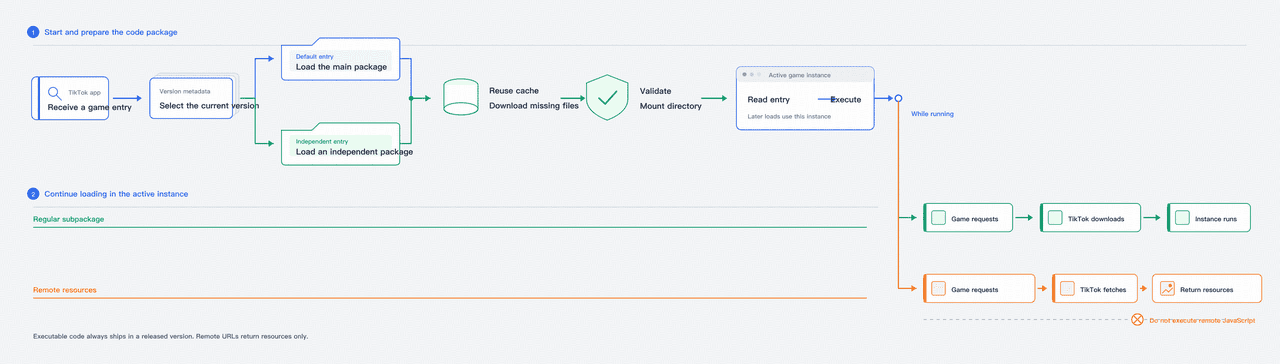
When a mini game session is launched, the TikTok app selects the current available version, reuses cached content or downloads missing content, then validates and mounts the code package.
The runtime reads the entry and configuration, creates a game instance, prepares a JavaScript or JavaScript plus WebAssembly environment, and injects public APIs. The entry code then starts the engine code and game logic.
Cocos Creator and LayaAir primarily execute JavaScript. Unity C# is converted to WebAssembly during the build. The runtime executes WebAssembly, while JavaScript bridge code connects it to public APIs.
The two paths differ only in code form. Rendering, audio, input, file, and network operations are ultimately performed by the TikTok app.
JavaScript and WebAssembly can call only public runtime APIs. The runtime passes each call to the TikTok app and returns the result or error to the active game instance. Requests to the developer server and their responses also pass through the TikTok app.
Frames and events
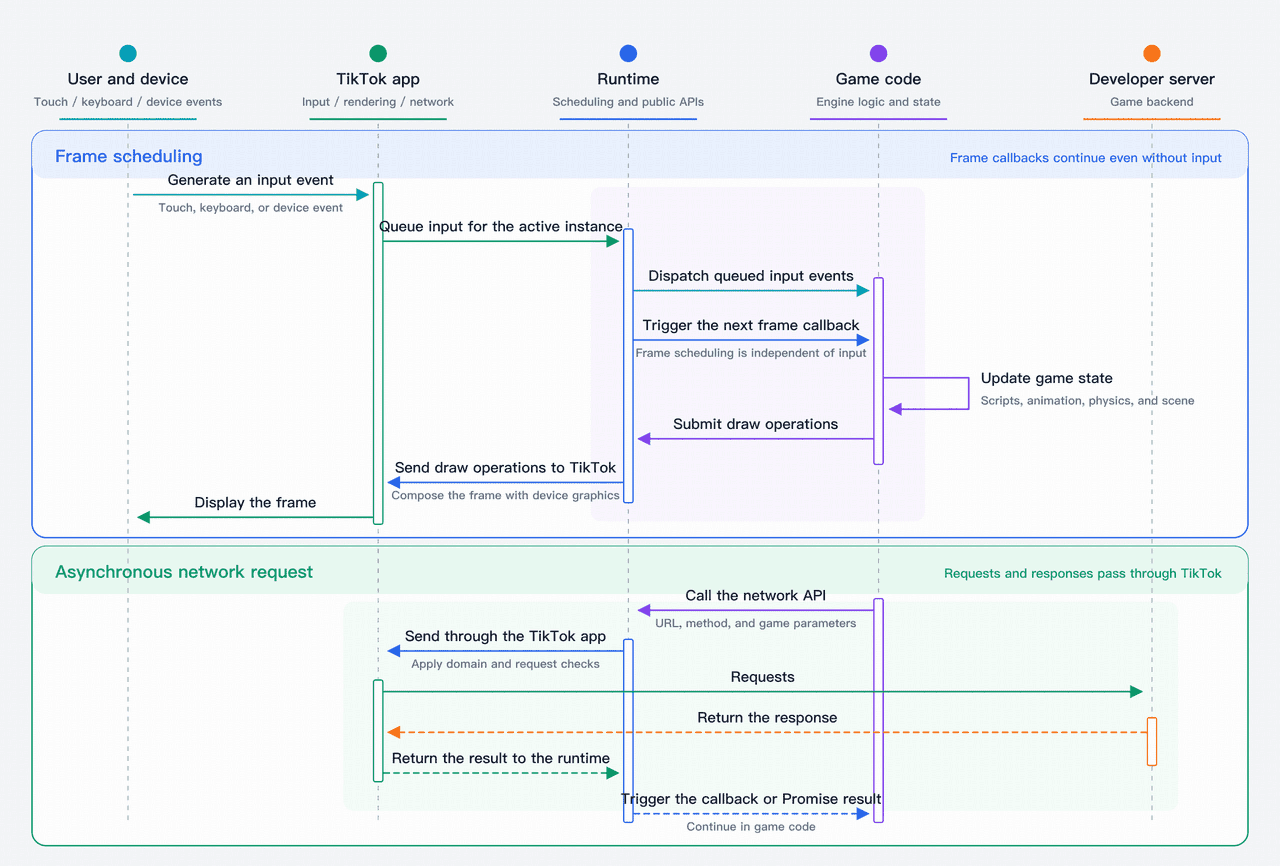
Input events do not trigger the frame loop: the two paths are independent. The TikTok app sends touch, keyboard, and device events to the active game instance, while the runtime continues to invoke frame callbacks on schedule.
On each frame, game code updates scripts, animation, physics, and scene state, then submits draw operations. The TikTok app composes the frame using device graphics capabilities.
Network requests use a separate asynchronous path. After the game calls a network API, the runtime passes the request to the TikTok app. The app checks request rules and accesses the developer server.
The app returns the response to the runtime, which triggers a callback or promise result. Waiting for a network response does not stop the frame loop.
Runtime constraints
- The mini game execution environment is not a full browser: Engine builds can use compatible mini game entries and public APIs, but they cannot depend on full DOM, CSS, web navigation, or arbitrary browser APIs.
- Device operations must use public APIs: The TikTok app performs rendering, audio, input, file, network, and lifecycle operations. A game cannot directly access private app interfaces or unavailable device capabilities.
- Callbacks share JavaScript execution time: Frame callbacks, timers, and app events execute in the active instance. Long synchronous scripts delay frames, input, and asynchronous results. Heavy scripts, scenes, or asset loading can still cause stutter.
- Executable code must ship in a released code package: A game can execute only code in the main package or a loaded subpackage. Remote URLs may load permitted assets but cannot dynamically execute new JavaScript.
Developing your mini game
Complete the game in the engine source project, then build a code package that the TikTok app can load. An engine preview proves only that the source project can run. The code package must also be validated in DevTool and in the real TikTok app.
TikTok Mini Games support frameworks such as Cocos Creator, LayaAir, and Unity. The framework or adaptation tooling converts the source project into a Mini Game code package. TikTok loads, debugs, and releases the result starting from that package.
Integrate platform features such as login, IAAs, IAPs, sharing, storage, and networking in the source project. They are built into the code package with the game code. Do not maintain business logic directly in the exported code package, because the next engine build will overwrite it.
Game engine | Source project | Core code-package output | Compatibility path |
Cocos Creator | TypeScript or JavaScript, scenes, and assets | JavaScript, entry points, configuration, adaptation code, and assets | Use the framework's mini game build support |
LayaAir | TypeScript or JavaScript, scenes, and assets | JavaScript, entry, configuration, adaptation code, and assets | Use the framework's mini game build support |
Unity | C#, scenes, prefabs, and assets | WebAssembly, JavaScript bridge code, data, and assets | Complete the conversion described in the Unity adaptation guide |
The three build paths converge at the code package: DevTool loads and inspects it first, and the TikTok app then executes it.
Cocos Creator
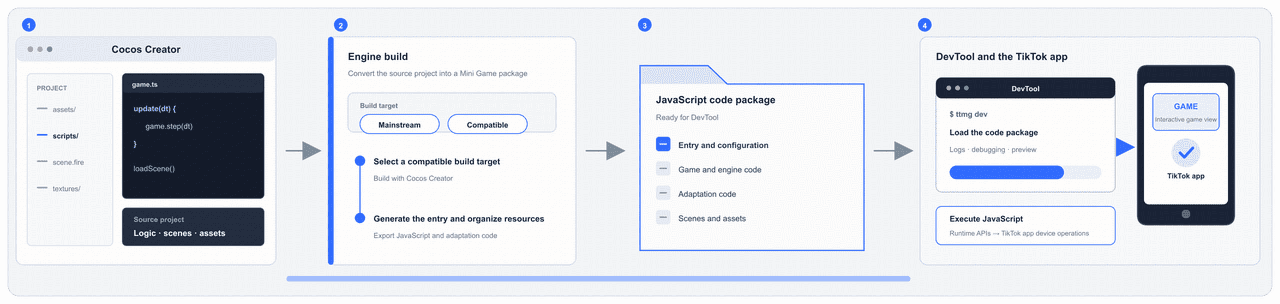
Maintain TypeScript or JavaScript, scenes, components, and assets in Cocos Creator. Use its mini game building capabilities to generate entry files, configuration, JavaScript, adaptation code, and assets.
After the build is completed, start DevTool from the export directory. Continue to make game logic and asset changes in the source project rather than in the export directory.
LayaAir
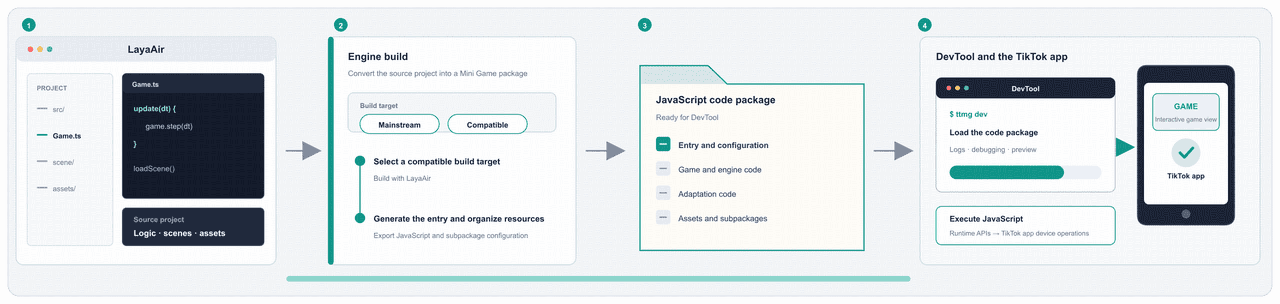
Maintain TypeScript or JavaScript, scenes, and assets in LayaAir. Use its mini game building capabilities to generate a JavaScript code package.
After the build is completed, first check the entry point, configurations, adaptation code, resource directories and subpackage configurations. Then launch DevTool from the export directory. Continue to make changes in the source project rather than in the export directory.
Unity
Maintain C#, scenes, prefabs, components, and assets in Unity, then complete the adaptation described in the Unity mini games guide.
During the build process, IL2CPP first converts C# to an intermediate C++ output. Emscripten then produces WebAssembly, JavaScript bridge code, and data. The adaptation tooling organizes these outputs as a code package that DevTool can load.
The current execution path does not use Mono or JIT, and a regular Unity WebGL directory cannot be delivered directly.
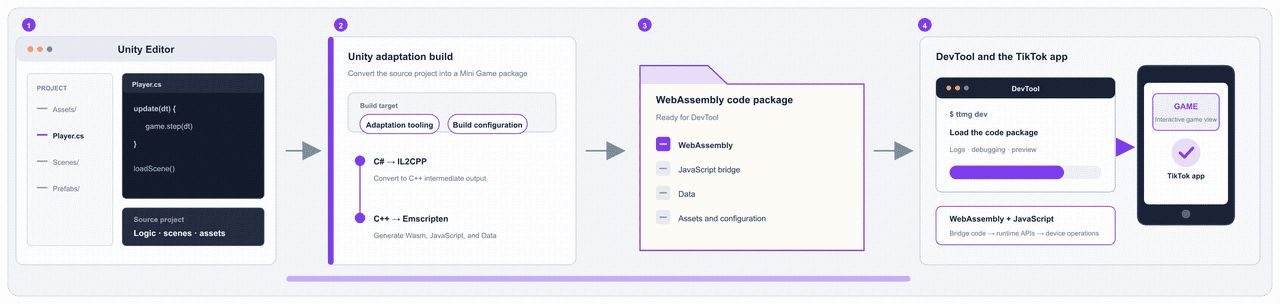
Unity Editor Play Mode validates only the source-project logic. Before building, confirm the version requirements for the adaptation tool, Unity, and TikTok app according to Unity's guidelines. Treat validation in the TikTok app as the final result.
Important: Unity has subpackage constraints. A build with bulk memory enabled cannot currently use subpackages. If DevTool prompts you to split WebAssembly, follow the steps in the Unity mini games guide to complete the split. Then re-preview on a real device to verify first-screen loading, core gameplay, asset loading, and stability. Check the latest package limits in Debug Your Mini Game.
Debugging your mini game
Debugging must confirm two things in order: that DevTool loads the code package correctly, and the game executes as expected in the TikTok app.
A logged-in account and an engine-generated code package directory are both required to start DevTool. Logging in alone does not generate a code package.
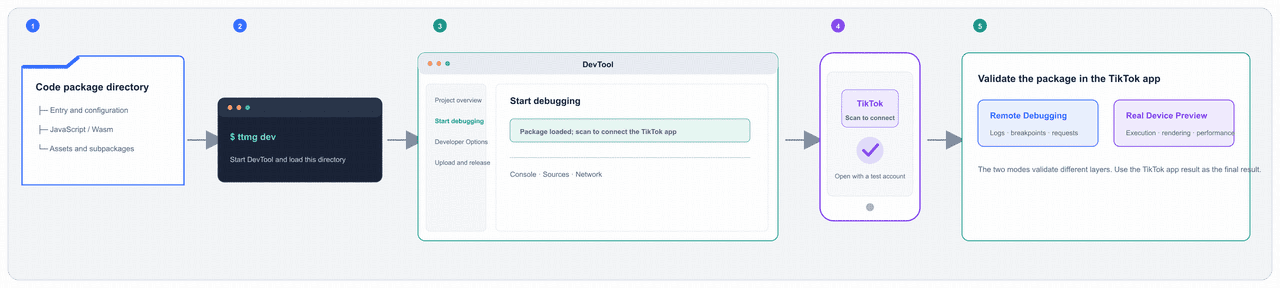
- Install Node.js and the DevTool command package @ttmg/cli, then run ttmg login with a TikTok for Developers account that has access to the project.
- Navigate to the engine-generated code package directory and run ttmg dev. Once DevTool opens, first verify the current project and loading directory.
- Use a TikTok account that has been added as a test user to scan the code and connect the device. The TikTok for Developers account is responsible for DevTool permissions, while the TikTok test account on the mobile device is responsible for accessing the test game. The two accounts need to be logged in separately.
- First, use remote debugging to inspect JavaScript, console, sources, and network, then use real device preview to verify the execution, rendering, input, resources, and performance of the code package on the client side. The final Unity results are subject to the real device preview.
Validation mode | What it validates | What it does not validate |
Engine preview | Scenes, scripts, asset references, and basic gameplay in the source project | The code package executing in the TikTok app |
Remote debugging | JavaScript logic, breakpoints, console, sources, and network | Complete real-device performance, device-native behavior, or the final Unity result |
Real device preview | Execution, rendering, input, assets, and performance in the TikTok app | An uploaded platform test version or released version |
After passing remote debugging and real device preview, proceed to run code checks and upload the same code package. See the mini game debugging guide for the complete procedure and the boundaries of each debugging mode.
Releasing your mini game
The release process includes two uploads: First, upload a platform test version through DevTool. Then, after validation, upload the same release package again in the Code version section of your app page on the Developer Portal and create a preview. After passing the preview, submit it for review to officially release it.
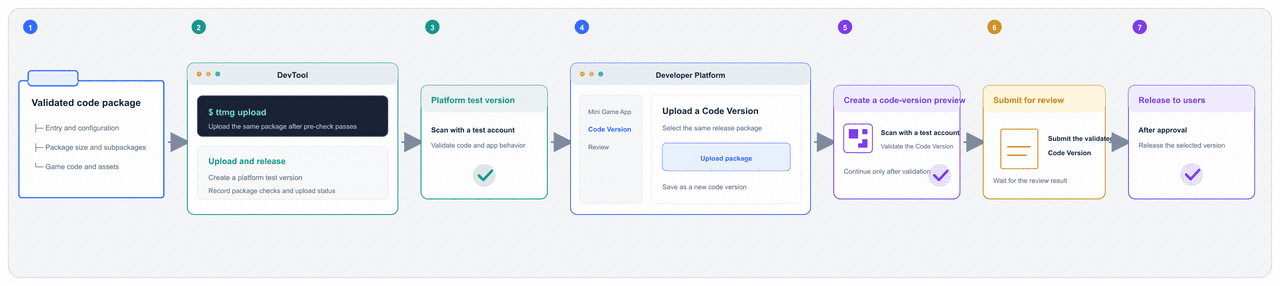
- Run code checks and fix blocking entry, configuration, package-size, and subpackage issues. A Unity WebAssembly risk warning identifies a possible performance risk and is not itself a package-size failure.
- Run ttmg upload in DevTool. After upload validation passes, the developer platform will generate a test version for this code package.
- Use a TikTok account with test access to validate the platform test version. Confirm launch, core gameplay, assets, and integrated platform features.
- Within the Code version section of your Developer Portal app page, upload the same release package and create a code version preview.
- Use a TikTok test account to scan the preview QR code. Confirm that it opens this code version preview, then validate launch, core gameplay, assets, and platform features again.
- Submit the validated code version for review. After approval, select that version and release it.
A platform test version, a Developer Portal code version preview, and a released version do not share the same entry point. After release, you still need to verify the version, launch parameters, and destination page from the intended user entry point. See mini game submission guide for the release procedure.
Discovering your mini game on TikTok
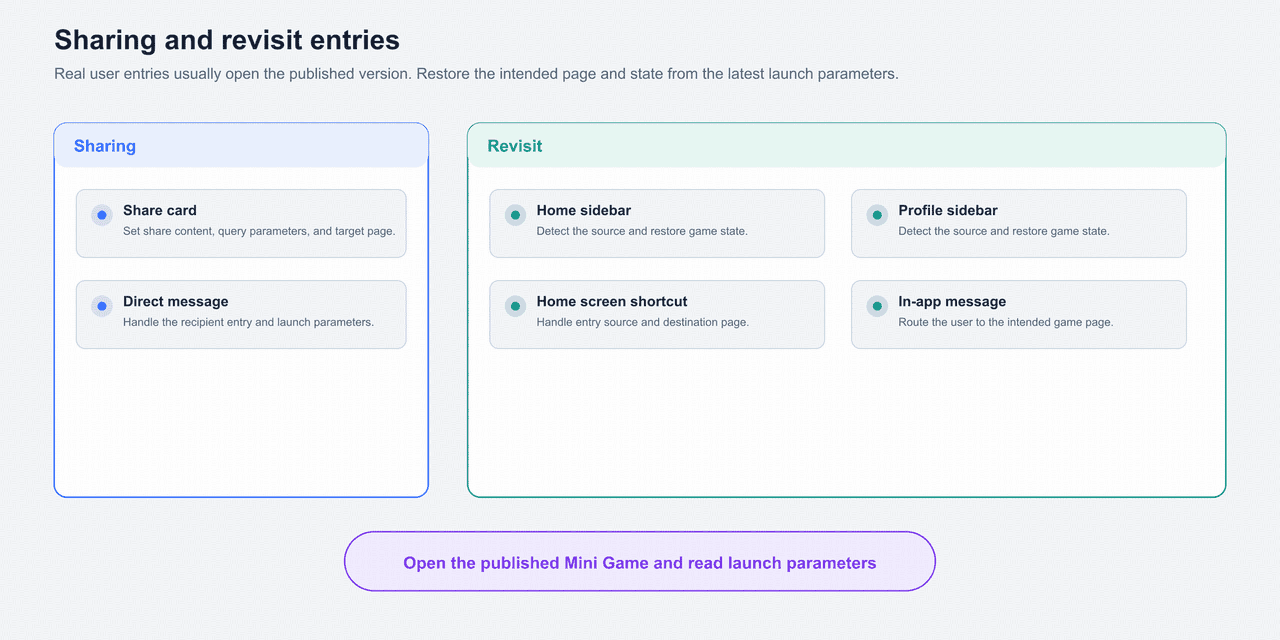
First distinguish paid traffic from organic traffic, then identify the entry point through which the user opens the game. Paid traffic comes from advertising. Organic traffic comes from content, search, TikTok Minis center, sharing, and revisit entries.
Each entry point can carry source, destination-page, campaign, sharing, or attribution parameters. Use them to open the correct page and restore the corresponding state.
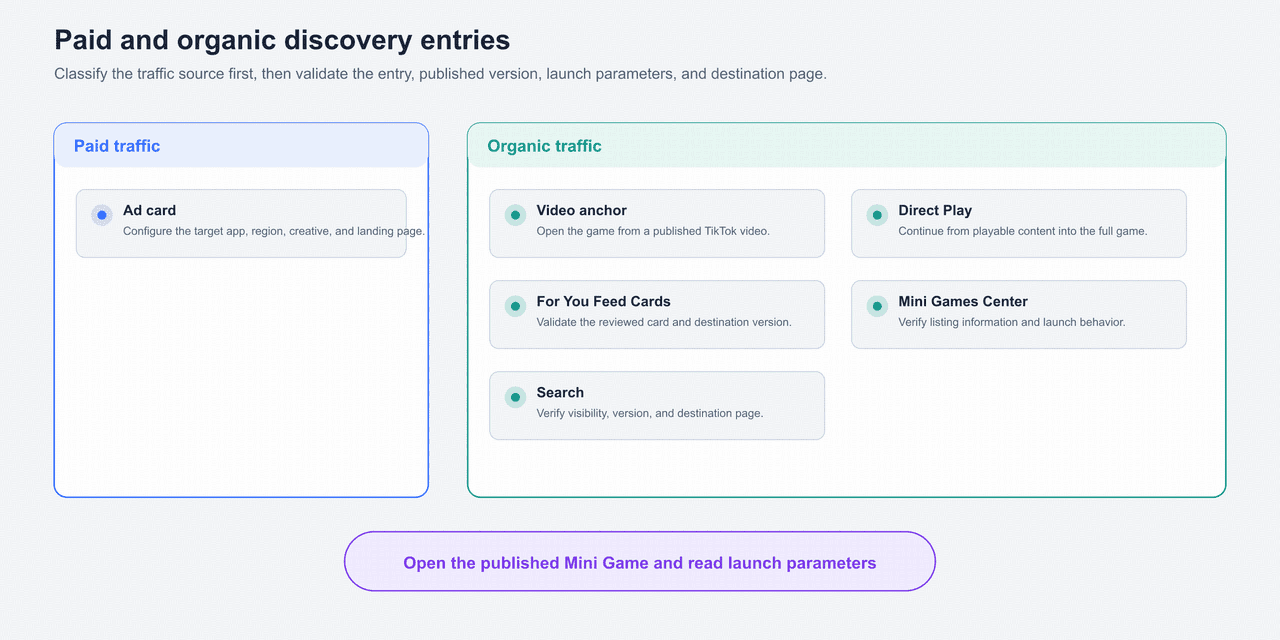
Paid traffic
Entry point | What to complete | Reference |
Ad card | Select the target mini game app, region, creatives, and landing page. After release, verify the destination page and parameters from a real ad entry. | Follow the current setup page and review instructions in the advertising product. |
Organic traffic
Entry point | What to complete | Reference |
Video anchor | Confirm that the content can attach the target mini game. After publishing, verify launch parameters and the destination page from the video anchor. | Follow the current content-publishing entry. |
Direct Play | Connect the playable content to the full game and preserve the parameters and state required to continue. | Follow the current availability and configuration requirements. |
For You Feed Cards | Upload card assets in the Developer Portal and submit them for review. After the card becomes visible, verify the destination version and page. | |
Mini Games Center | Keep the app name, localization, category, release regions, and accessible version accurate. Verify listing and launch behavior from TikTok Minis center. | You do not create this entry in game code. |
Search | Keep the app name, localization, category, and release regions accurate. After the game becomes searchable, verify the destination page. | Follow current search-display and release requirements. |
Share card | Call the sharing API and set the share content, query, and destination page. When the recipient enters, restore the intended scene from the parameters. | |
Direct message | Integrate contact selection and sharing content, then handle the entry parameters when the recipient opens the game. | |
Home sidebar | Identify the entry source, guide the user, and restore game state from the parameters. | Availability depends on the current TikTok app rollout. |
Profile sidebar | Identify the entry source, guide the user, and restore game state from the parameters. | |
Home screen shortcut | Call the API that adds the shortcut. When the user enters from the home screen, identify the source and restore game state. | |
In-app message | Configure message subscription, server-side delivery, and template parameters, then route the user to the intended game page. | Follow the current availability and integration instructions for in-app messaging. |
The names in the table follow the terminology in the developer documentation. Actual names, placement, and visual styles depend on the TikTok app and Developer Portal.
Launching a mini game session
At launch, the TikTok app selects the main package or an independent subpackage according to the entry. The game can then load regular subpackages and remote assets on demand.
A code package must contain a recognizable entry and configuration, game and engine code, adaptation or bridge code, and packaged assets.
A typical code package uses game.js as its entry, game.json for runtime and subpackage configuration, and project.config.json for DevTool project configuration.
The build tool generates the game code, engine code, and asset directories. Exact directory names can vary with the engine version and build configuration.
Launch types
- Main package: Everything in the code package except all subpackage root directories. The default entry loads the main package first and then executes its entry.
- Regular subpackage: Loaded on demand by game code in the main package. After loading, its code continues to execute in the active game instance.
- Independent subpackage: A subpackage marked for independent launch. It can start directly from its corresponding entry without executing the main package first.
Use the lowercase field subpackages in the configuration. Set independent: true for an independent subpackage.
Every root must point to a directory that actually exists in the code package. Main-package size equals the total code-package size minus all subpackage root directories.
Code package type | Total size | Main package | Regular subpackage | Independent subpackage |
Unity | Up to 60 MB | No separate limit | No separate limit, but counted toward the total | No separate limit, but counted toward the total |
Non-Unity | Up to 30 MB | Up to 4 MB | No separate limit, but counted toward the total | Up to 4 MB each |
The table shows the current package requirements. A Unity WebAssembly function-count warning is a performance recommendation, not an additional package-size limit. Before upload, check the mini game debugging guide for the latest limits and calculation methods.
Launch parameters
On first launch, Cocos Creator and LayaAir projects call TTMinis.game.getLaunchOptionsSync() to read scene and query. Call getEnterOptionsSync() for the most recent cold or warm start.
When the game returns from the background, use onShow for the current entry parameters. Unity projects read the corresponding launch and show-event data through the Unity SDK. See Mini Games SDK: Event.
DevTool can simulate some entry parameters for page-routing and parameter-handling tests.
Real sharing, revisit, advertising, and search entries usually open the released version. Also verify the version, parameters, and destination page from the real entry.
Asset loading
Put first-screen dependencies, content tightly coupled to code, and content that must be validated with the version in the code package.
Larger images, audio, and configuration files that can be fetched later may be loaded remotely. Remote URLs must use HTTPS and be added to the project's request-domain configuration.
Requests are still sent and checked by the TikTok app. Disabling domain checks locally affects debugging only and does not replace the release configuration.
Important: Do not execute remote JavaScript dynamically. New or modified game logic must be included in the code package or a subpackage, then pass code checks, review, and release again. Remote URLs are only for assets that are allowed to load remotely.