
Connect a BytePlus Account
Set up a BytePlus Video on Demand (VOD) account and connect it to your mini drama mini app so you can upload and play episodes. TikTok uses the account's access keys to upload videos to BytePlus and to control playback.
Prerequisites
- You have a mini app on the Developer Portal.
- Your mini app has the Mini Dramas industry qualification approved.
Set up a BytePlus VOD account
Mini drama developers can get preferential BytePlus VOD pricing. To set up an account:
- Complete the TikTok Minis integration information form. A BytePlus account manager contacts you within 1–2 business days to discuss the partnership plan. This account manager handles only BytePlus VOD contracts. They aren't your TikTok Minis account manager. Contact your TikTok operations representative for the information form.
- Sign in to BytePlus and register an account.
- After you sign the partnership agreement, your BytePlus account manager configures the preferential pricing on your account.
For more information about BytePlus VOD, see the BytePlus website. For questions, contact BytePlus.
Prepare your BytePlus account
Before you connect the account, make sure it has the following configuration:
Item | Purpose |
Account ID | Identifies the BytePlus account when you connect it and in Media Asset API requests ( |
Access key ID and secret access key | Let TikTok call BytePlus on your behalf. |
Video storage space | Stores your episode videos. All episodes in a mini drama must belong to the same space. |
Playback domain | If your playback flow requires domain binding, a certificate, or a CNAME record, configure them in BytePlus first. |
Caution: Keep your access key ID and secret access key secure. If the keys change or become invalid, verify the account again on the Developer Portal. Otherwise, review, publishing, and playback can fail.
Find your account ID
- Sign in to the BytePlus console.
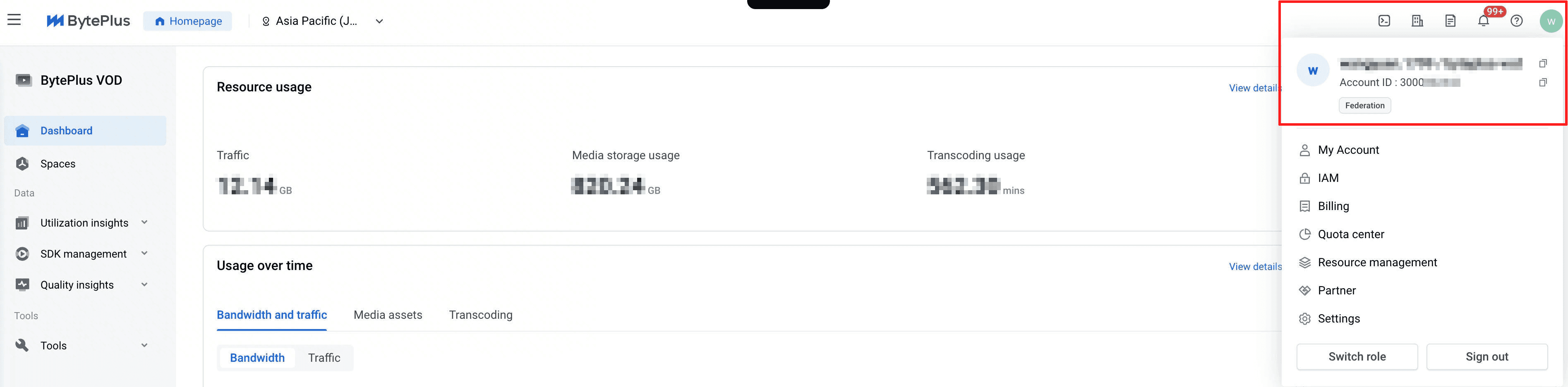
- Open the account information panel. Your account ID appears in the panel.
Find or create your access keys
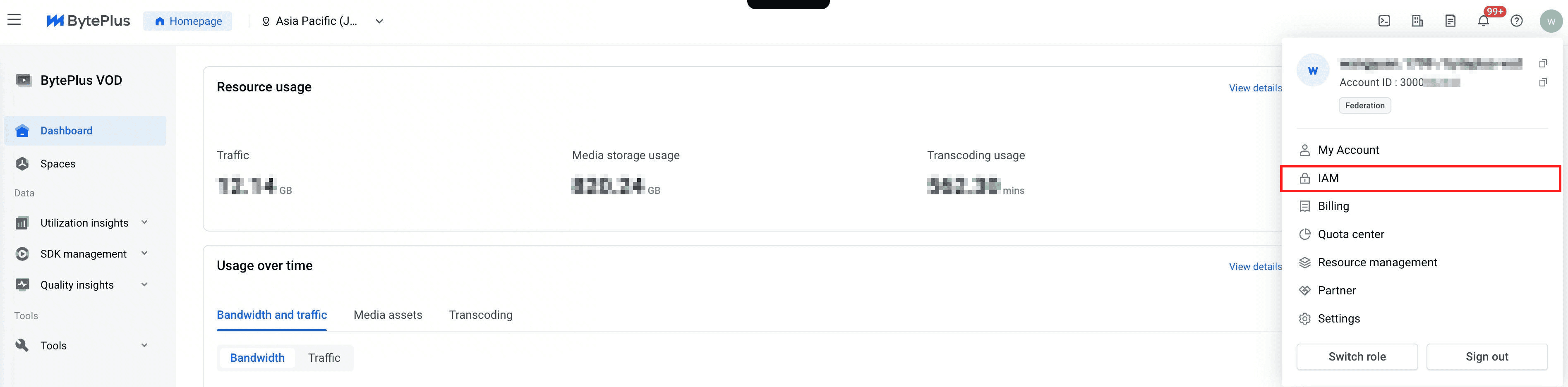
- In the BytePlus console, open the account information panel, then click IAM.
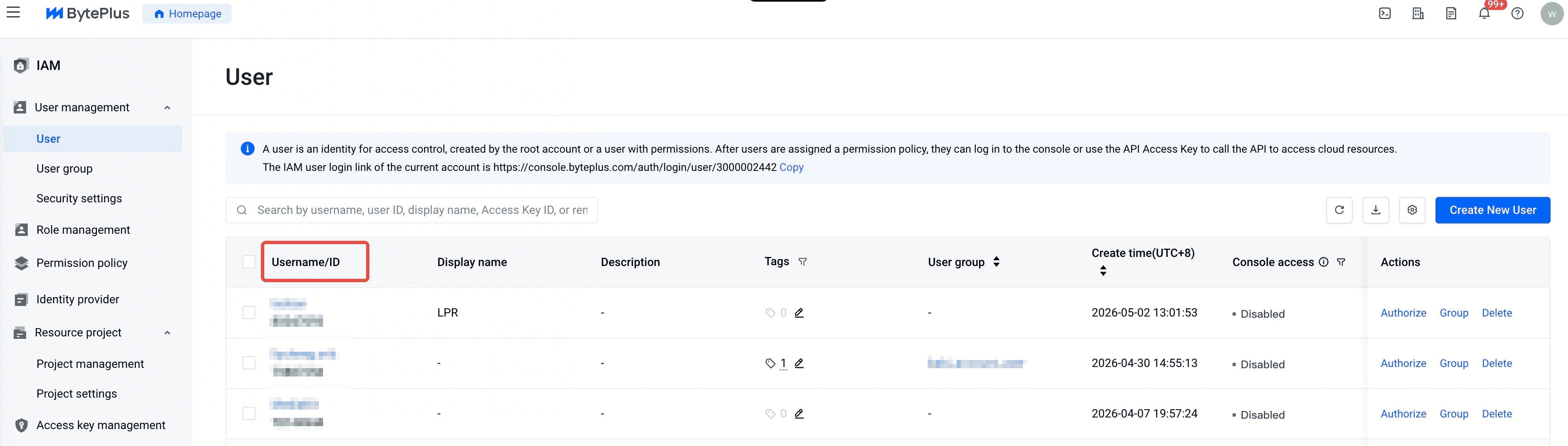
- In User management, click your username to open the user details.
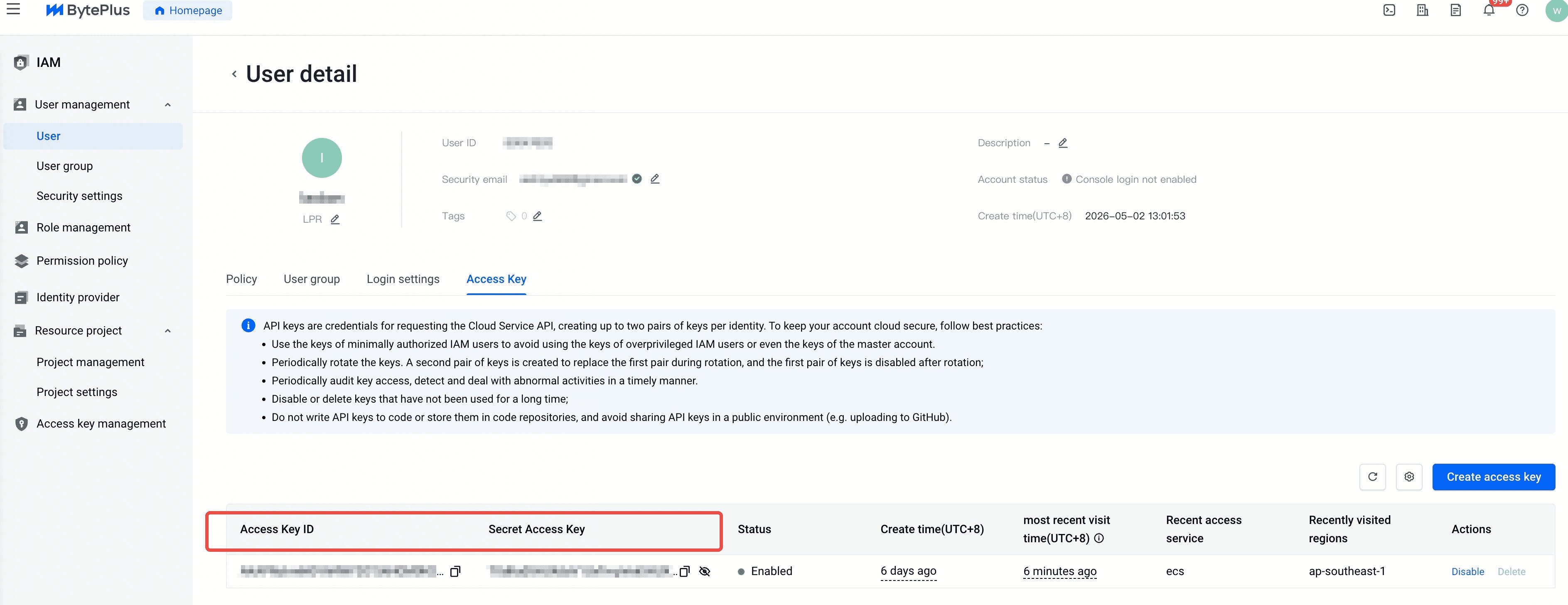
- In Access Key, view your access key ID and secret access key, or create new ones.
Activate media asset management
- On the Developer Portal, open your mini drama mini app's workspace.
- Go to App setup > Industry solutions.
- On the Media asset management card, click Activate. The card shows the activated state.
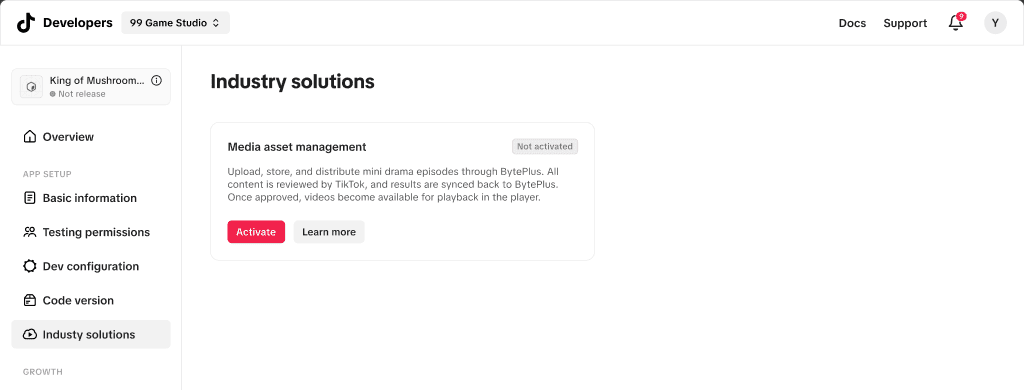
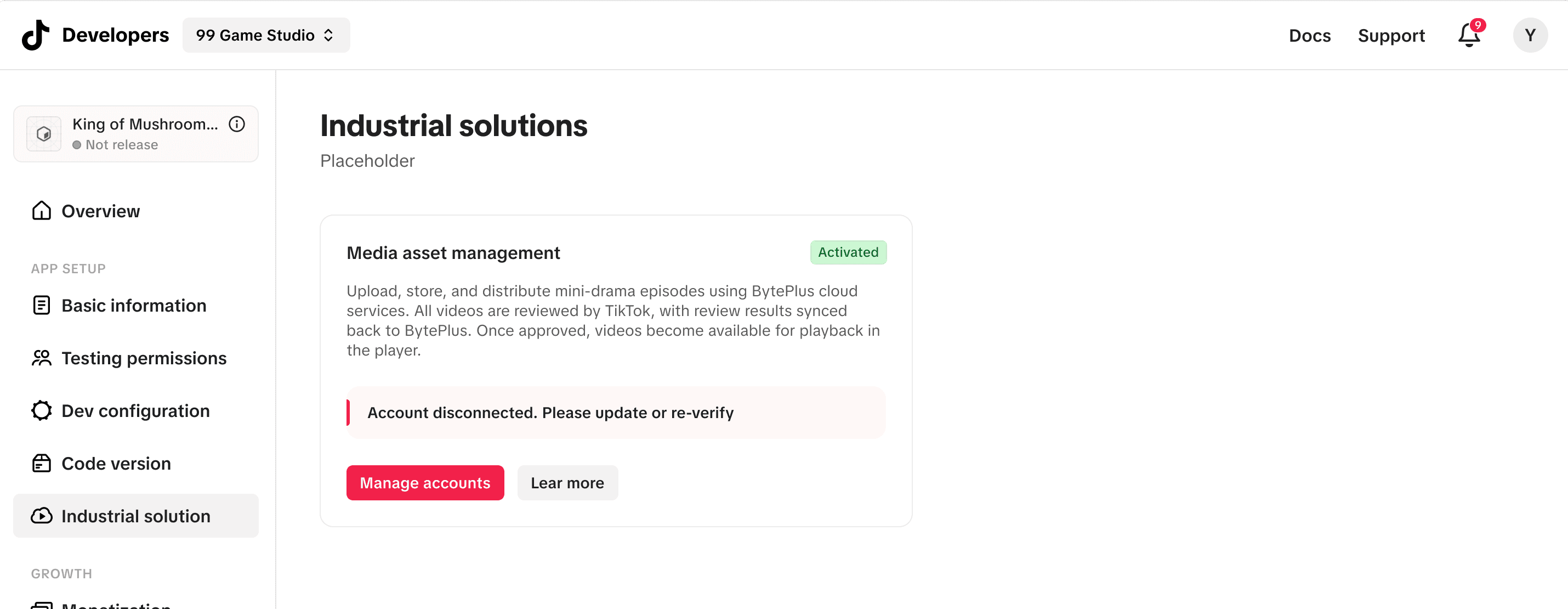
If Activate is unavailable, your Mini Dramas industry qualification hasn't been approved. Complete the industry qualification application, then return to Industry solutions after approval.
Connect the account
- Go to App setup > Industry solutions.
- On the Media asset management card, click Manage accounts.
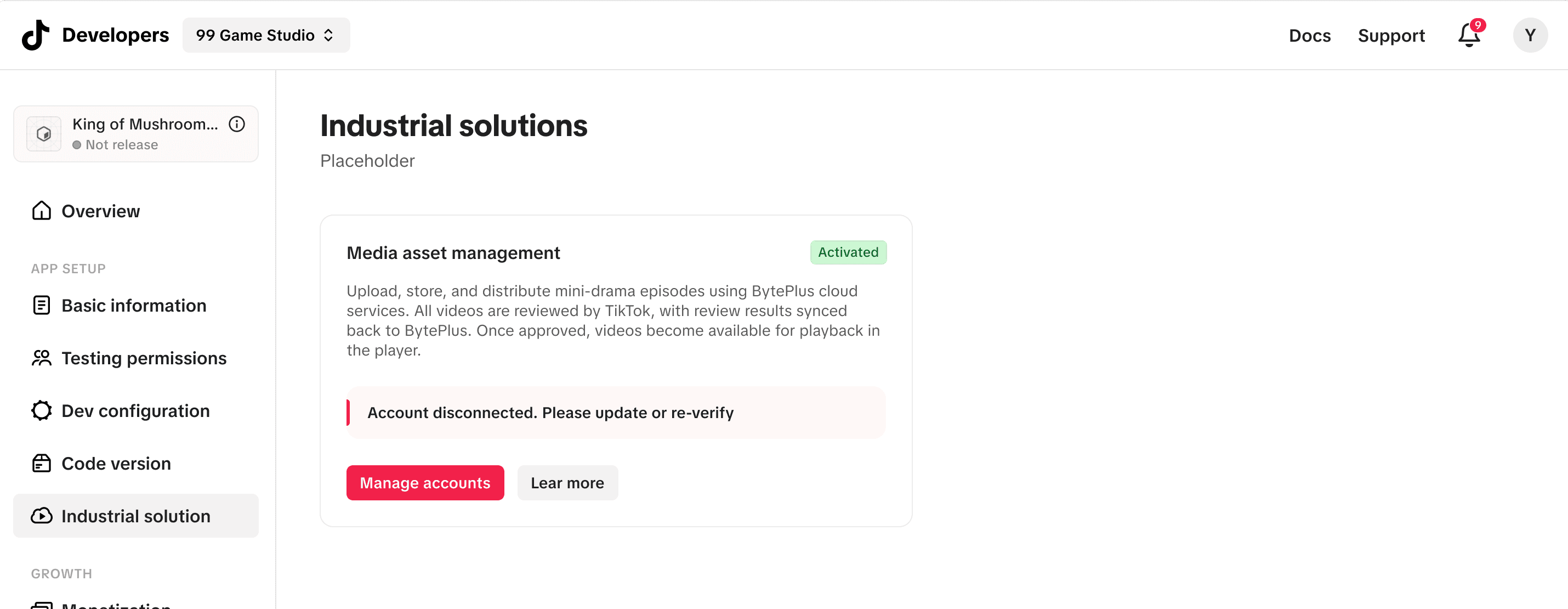
- On the Media asset management page, click Connect an account.
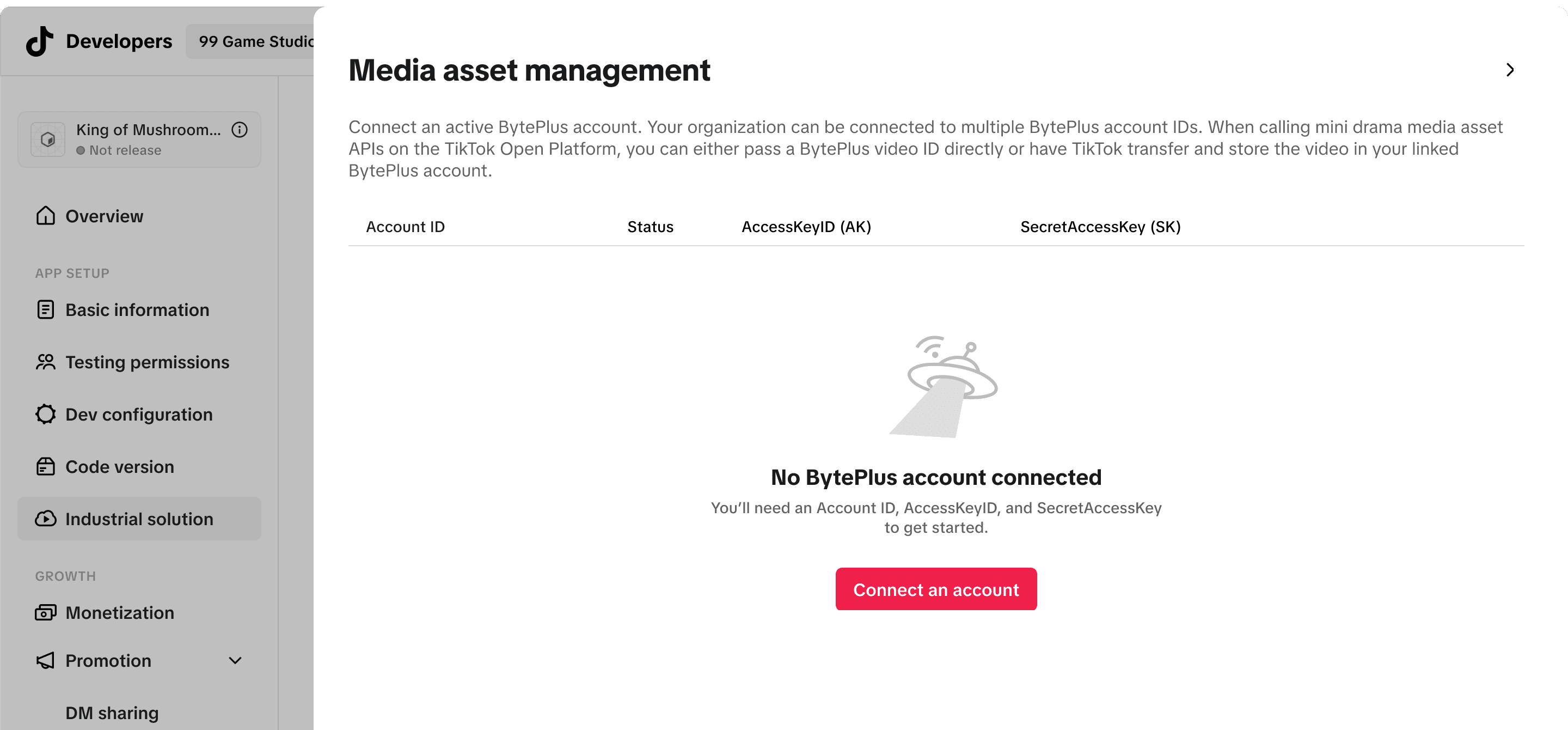
- In the Connect a BytePlus account dialog, enter your Account ID, AccessKeyID, and SecretAccessKey, then click Verify.
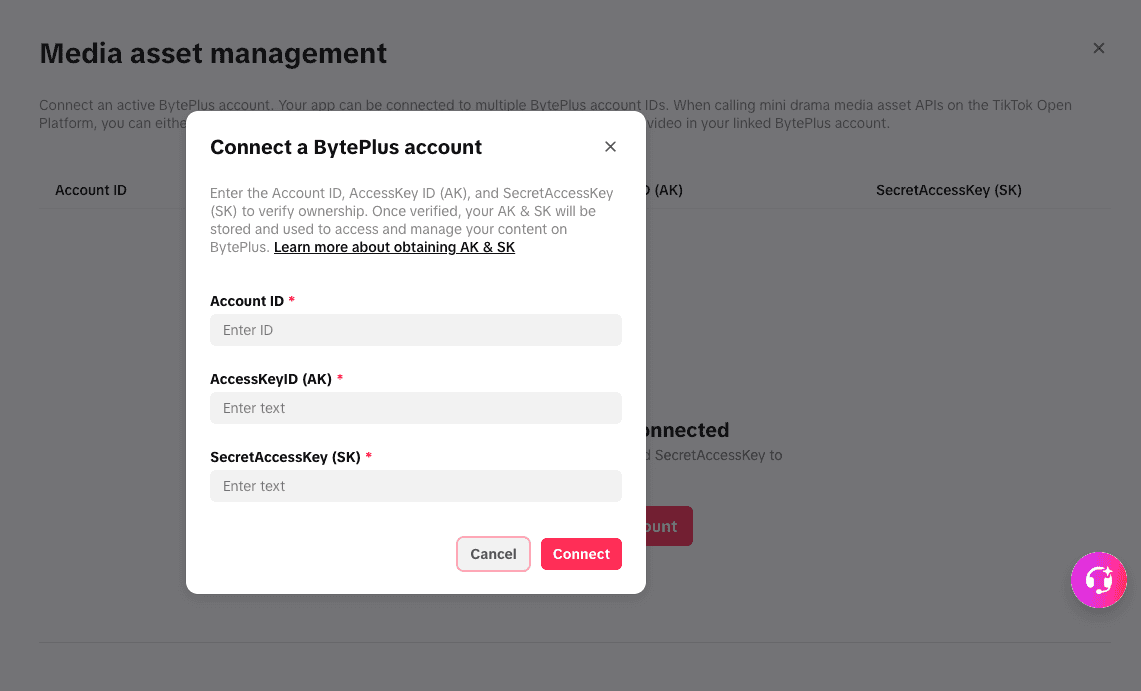
- Confirm that the account appears in the list of connected accounts with the status Connected.
TikTok verifies that the access keys belong to the account. After verification, the Developer Portal shows only masked keys.
Update your access keys
If you rotate your BytePlus access keys, or the existing keys become invalid:
- Go to App setup > Industry solutions, then click Manage accounts on the Media asset management card.
- Next to the account, click Edit AK&SK.
- Enter the new AccessKeyID and SecretAccessKey, then click Verify.
Warning: All Media Asset API calls and all playback for a connected account use the keys you entered here. If the keys change in BytePlus and you don't update them, every Media Asset API call fails and episodes don't play.
Next steps
- Review the mini drama media requirements.
- Upload a mini drama video with the Media Asset API.
- Integrate Mini Drama Player.