
Optimize Mini Drama Playback Startup
Reduce the time to first frame and the wait between episodes in the Mini Drama Player. You can start network connections early, fetch media information before playback, and preload the first part of upcoming episodes. These techniques work together: each one removes a different wait.
Prerequisites
- You have integrated Mini Drama Player.
- Your episodes are transcoded. Preloaded data can't be used if the player falls back from MSE to native video playback, which happens with incompatible, untranscoded videos.
Preconnect to video domains
To start DNS lookup and connection setup before the first video request, add preconnect and dns-prefetch hints early in the <head> of your entry HTML, before player and application scripts:
<head>
  <link rel="preconnect" href="https://BYTEPLUS_ACCOUNT_NAME-SPACE_NAME.minis.byteplusvod.com" crossorigin="anonymous">
  <link rel="dns-prefetch" href="//BYTEPLUS_ACCOUNT_NAME-SPACE_NAME.minis.byteplusvod.com">

  <link rel="preconnect" href="https://BYTEPLUS_ACCOUNT_NAME-SPACE_NAME.tiktok-minis-vod.us" crossorigin="anonymous">
  <link rel="dns-prefetch" href="//BYTEPLUS_ACCOUNT_NAME-SPACE_NAME.tiktok-minis-vod.us">

  <link rel="preconnect" href="https://BYTEPLUS_ACCOUNT_NAME-SPACE_NAME.tiktok-minis-vod.eu" crossorigin="anonymous">
  <link rel="dns-prefetch" href="//BYTEPLUS_ACCOUNT_NAME-SPACE_NAME.tiktok-minis-vod.eu">
</head>
Replace BYTEPLUS_ACCOUNT_NAME and SPACE_NAME with the names in your playback hostname, joined by a hyphen. Include only the scheme and hostname, without paths or playback authorization parameters.
- The example covers all three playback domains. If you know the playback domain when the page loads, preconnect only to that domain and keep
dns-prefetchfor the others, to avoid unused connections. Don't infer the domain from the user's location. - Match
crossoriginto how the player requests video. The example usesanonymousfor CORS requests without credentials. Adjust it for native<video>requests without CORS, or for requests that include credentials. - These hints don't download video data or replace preloading. Their effect depends on the WebView, so measure the first-video startup on target devices.
Prefetch media information
VePlayer.prefetchMediaInfo(sources) requests and caches playback information before you create a player. It reduces the information request time on first playback or when you switch episodes. It doesn't download video data.
The following table compares media information prefetch with video preloading:
Capability | API | What it does | Requirements |
Media information prefetch |
| Requests and caches the | None. No player instance or |
Video preloading |
| Resolves media information, then downloads the first part of each video into a cache. | The preload module. Playback hits also require MSE. |
Prefetch upcoming episodes
Call prefetchMediaInfo after an episode card appears, when the user approaches the playback page, or shortly before an episode switch. Then create the player or call playNext with the same episode identifiers and transcodeParam, so the player reuses the result.
// Run after TTMinis.init() completes
const VePlayer = await TTMinis.getPlayer();

const sources = episodeList.slice(currentIndex, currentIndex + 3).map((item) => ({
  albumId: item.albumId,
  episodeId: item.episodeId,
  vid: item.vid,
  transcodeParam: item.transcodeParam,
}));

const results = await VePlayer.prefetchMediaInfo(sources);

results.forEach((result, index) => {
  if (result.status === 'fulfilled') {
    console.log('Media info ready', index, result.data, result.fromCache);
  } else {
    console.warn('Media info prefetch failed', index, result.error);
  }
});
The method accepts a batch and returns results in input order. One failed item doesn't stop the others.
Each source accepts the following fields. Direct url sources aren't supported.
Field | Type | Required | Description |
|
| Yes | The ID of the mini drama. |
|
| Yes | The ID of the episode. Part of the cache key. |
|
| No | The video ID. You should pass it for matching and diagnostics. |
|
| No | The preferred definition. |
|
| No | The transcoding parameters. Must match later playback. |
To support TikTok versions earlier than 44.5.0, also pass getVideoByToken.playAuthToken.
Each result has one of the following statuses:
Status | Fields | Meaning |
|
| Valid media information is available. |
|
| This item failed. Retry only if you still need it and the cause is recoverable. |
Prefetch cache behavior
- Concurrent requests for the same episode share one request. A failed request is removed, so a later retry sends a new request.
- Prefetch results are cached in memory even if you haven't enabled the media information cache. Entries last 30 minutes by default, up to 100 entries, and never longer than the playback URL's expiry. The
expireTimeandmaxEntriessettings of setMediaInfoCacheConfig also apply. - The player reuses prefetched results when you create it or call
playNext.setPreloadListandaddPreloadListalso reuse them, but they resolve media information themselves, so don't callprefetchMediaInfoimmediately before them for the same episodes. - The cache doesn't persist across pages. To clear it, call
VePlayer.clearMediaInfoCache().
Prefetch only the current and next few episodes, not a whole catalog. Use one batch call, and keep episodeId and transcodeParam consistent with playback. A fulfilled result means only that media information is ready, not that video data is preloaded.
Preload video data
Preloading downloads the first part of upcoming episodes into an in-memory cache. When the user plays one of those episodes, the player reads from the cache and skips the network download, which shortens the time to first frame and the wait between episodes.
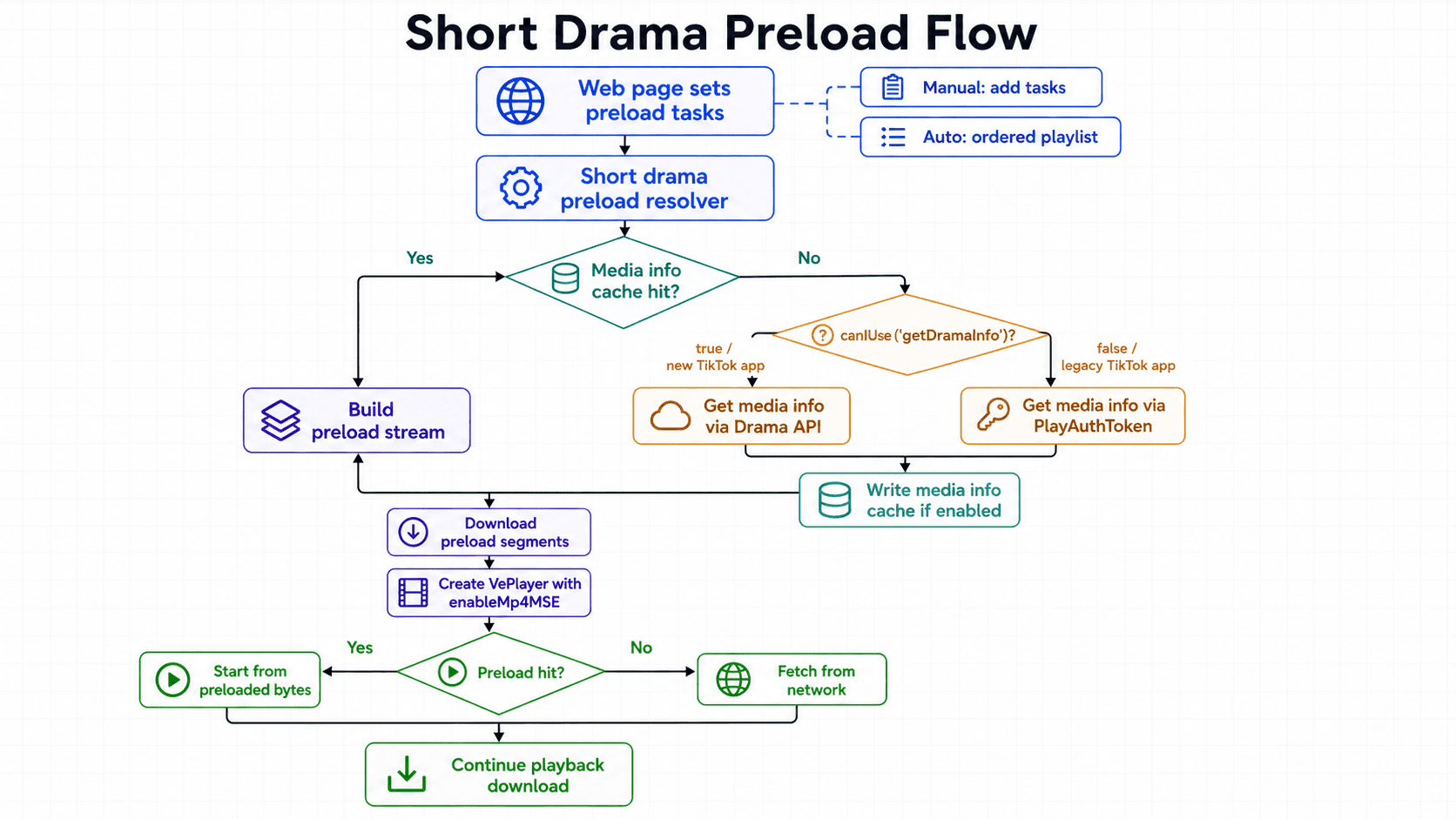
The preload module supports the following configurations:
Item | Support |
Format | MP4 and HLS. For HLS, initialize the module with |
Playback configuration | MP4 requires |
Runtime | Requires MSE or ManagedMediaSource, and a compatible codec. Native HLS support doesn't mean the player can reuse cached data. |
Episode sources | Supported. The player resolves |
Quickstart
// 1. Initialize the preload module
await VePlayer.prepare({
  strategies: { preload: true },
});

// 2. Set the episodes to preload
await VePlayer.setPreloadList([
  {
    vid: 'VID',
    albumId: 'ALBUM_ID',
    episodeId: 'EPISODE_ID',
    defaultDefinition: '720p',
  },
]);

// 3. Create the player with MSE enabled
const playerSdkIns = new VePlayer({
  id: 'player-container',
  vid: 'VID',
  albumId: 'ALBUM_ID',
  episodeId: 'EPISODE_ID',
  defaultDefinition: '720p',
  enableMp4MSE: true,
});
Replace VID, ALBUM_ID, and EPISODE_ID with the episode's identifiers. To support TikTok versions earlier than 44.5.0, also pass getVideoByToken.playAuthToken in both places.
Initialize the preload module
Call VePlayer.prepare once before you call setPreloadList or addPreloadList. Pass preload: true to use the defaults, or an object to configure the module:
Parameter | Type | Default | Description |
|
|
| The preload mode. |
|
|
| The number of earlier episodes to preload. Automatic mode only. |
|
|
| The number of later episodes to preload. Automatic mode only. |
|
|
| The duration of each MP4 video to preload, in seconds. |
|
|
| The maximum number of cached videos. When exceeded, the least recently used video is evicted. |
|
|
| If |
Each item in the preload list accepts the following fields:
Field | Type | Required | Description |
|
| Yes | The ID of the mini drama. |
|
| Yes | The ID of the episode. Part of the cache key. |
|
| No | The video ID. You should pass it, and each video's |
|
| No | The definition to preload. Part of the cache key. Must match playback. |
|
| No | The transcoding parameters. Must match playback. |
|
| No | The playback token configuration. Required only before TikTok 44.5.0. |
Cache media information
You should enable the media information cache alongside preloading. Preloading requests media information in advance. With the cache enabled, the player reuses it at playback instead of requesting it again.
VePlayer.setMediaInfoCacheConfig({
  enable: true,
});
Option | Type | Default | Description |
|
|
| If |
|
|
| Where to store the cache. Use |
|
|
| The cache lifetime in milliseconds. Never longer than the playback URL's expiry. Invalid values are ignored. |
|
|
| The maximum number of entries. When exceeded, the least recently accessed entry is evicted. |
The cache key is episodeId plus defaultDefinition. To clear the cache, call VePlayer.clearMediaInfoCache().
Choose a preload mode
Call VePlayer.setPreloadScene(scene, options) to switch modes. The modes differ in who decides which episodes to preload:
Aspect | Manual mode ( | Automatic mode ( |
Trigger | Preloading starts when you call | The player schedules preloading when it's created or switches to a new |
List meaning | The episodes to preload. | The ordered playlist. The player preloads around the current position. |
Scope | Everything you add. |
|
Typical use | Warming up the first episode from a home or discovery page. | Continuous watching on the playback page. |
Switching modes clears items that haven't entered the preload queue. Tasks already downloading continue.
Use manual mode
Use manual mode to warm up specific episodes before the playback page opens, such as when an episode card appears or the user is about to tap it.
await VePlayer.prepare({
  strategies: { preload: true },
});

await VePlayer.setPreloadScene(0);

await VePlayer.setPreloadList([
  { vid, albumId, episodeId, defaultDefinition: '720p' },
]);

const playerSdkIns = new VePlayer({
  id: 'player-container',
  vid,
  albumId,
  episodeId,
  defaultDefinition: '720p',
  enableMp4MSE: true,
});
In manual mode:
setPreloadList(list)replaces the current list.addPreloadList(list)appends to the current list.- The player doesn't preload the episode that's playing.
- For the first episode to hit the cache, allow enough download time before you create the player.
Use automatic mode
Use automatic mode on the playback page. Pass the ordered episode list, including the current episode, so the player can find its position.
await VePlayer.prepare({
  strategies: { preload: true },
});

await VePlayer.setPreloadScene(1, {
  prevCount: 1,
  nextCount: 2,
});

await VePlayer.setPreloadList(episodeList);

const playerSdkIns = new VePlayer({
  id: 'player-container',
  vid: currentVid,
  albumId,
  episodeId: currentEpisodeId,
  defaultDefinition: '720p',
  enableMp4MSE: true,
});
When you switch episodes, pass information that matches the preload list:
playerSdkIns.playNext({
  vid: nextVid,
  albumId,
  episodeId: nextEpisodeId,
  defaultDefinition: '720p',
  enableMp4MSE: true,
});
In automatic mode, the player:
- Preloads only while the current episode plays smoothly, and yields bandwidth when playback stalls or the buffer runs low.
- Runs preload tasks one at a time as playback progresses.
- Skips episodes that are already cached, already queued, or playing.
- Checks for preload tasks when you create a player, switch episodes, or change the list.
- Doesn't preload the first episode. Automatic mode serves episode switches.
Keep one player instance per page, and switch episodes with playNext or by destroying the old player and creating a new one.
Combine manual and automatic modes
A common pattern is to warm up the first episode in manual mode on the home page, then switch to automatic mode on the playback page:
- Before the user taps an episode card, such as when it appears or the user hovers over it, call
setPreloadScene(0), thensetPreloadListoraddPreloadListwith the first episode. - When the user opens the playback page, clear the manual tasks and switch to automatic mode:
VePlayer.preloader?.clearPreloadList();
VePlayer.preloader?.removeAllPreloadTask?.();

await VePlayer.setPreloadScene(1, {
  prevCount: 1,
  nextCount: 2,
});

await VePlayer.setPreloadList(episodeList);
If the first episode finished downloading, the player starts from the cache.
The following table lists recommended settings:
Scenario | Settings | Notes |
Warm up the first episode from the home page |
| 5 seconds of data is enough to start playback. |
Continuous watching on the playback page |
| Covers the previous and next episodes. |
Media information cache |
| Reuse within the page. |
Add episodes in batches
For long series, submit an initial batch with setPreloadList, then append later episodes with addPreloadList as the user progresses. Submitting five episodes doesn't download all five immediately. The player still selects targets with prevCount and nextCount.
Call setPreloadList again only when the user changes series or the playback order changes.
await VePlayer.prepare({
  strategies: {
    preload: {
      format: ['mp4', 'hls'],
      sn: 3,
      level: 0,
    },
  },
});

await VePlayer.setPreloadScene(1, {
  prevCount: 1,
  nextCount: 2,
  preloadTime: 10,
});

function toSource(episode) {
  return {
    vid: episode.vid,
    albumId: episode.albumId,
    episodeId: episode.episodeId,
    defaultDefinition: '720p',
  };
}

const initialEpisodes = episodes.slice(0, 5);
await VePlayer.setPreloadList(initialEpisodes.map(toSource));
const submittedVids = new Set(initialEpisodes.map((e) => e.vid));

// Call serially to avoid duplicate submissions
async function appendEpisodes(items) {
  const newItems = items.filter((e) => !submittedVids.has(e.vid));
  if (!newItems.length) return;

  await VePlayer.addPreloadList(newItems.map(toSource));
  newItems.forEach((e) => submittedVids.add(e.vid));
}

// For example, append episodes 6–10 while episode 4 plays
await appendEpisodes(episodes.slice(5, 10));
If you use transcodeParam, pass the same values for preloading and playback.
Preload around ad unlocks
Keep the existing preload list and tasks while an ad plays. If the locked episode is already eligible for preloading, append it during the ad so it has time to download. If its playback information is available only after unlocking, append it as soon as the unlock succeeds. In that case, a cache hit isn't guaranteed.
// canPreload: whether the target episode is eligible for preloading now
async function onAdStart(nextEpisode, canPreload) {
  if (canPreload) {
    await appendEpisodes([nextEpisode]);
  }
}

// unlockedEpisode: the playback information returned after unlocking
async function onAdUnlockSuccess(unlockedEpisode) {
  await appendEpisodes([unlockedEpisode]);
  await playerSdkIns.playNext(toSource(unlockedEpisode), true);
}
When setPreloadList or addPreloadList resolves, the list was submitted. The download might not be complete. To confirm that playback used cached data, check playerSdkIns.preLoadData.hit after playback starts.
Preload HLS episodes
To preload HLS, initialize the module with format: 'hls', or ['mp4', 'hls'] for a mixed list. The episode must already have an HLS transcoded output. transcodeParam requests that output but doesn't create it.
// Run after TTMinis.init()
const VePlayer = await TTMinis.getPlayer();
VePlayer.setMediaInfoCacheConfig({ enable: true });

await VePlayer.prepare({
  strategies: {
    preload: {
      format: 'hls',
      sn: 3,
      level: 0,
      preloadScene: 0,
      preloadMaxCacheCount: 5,
    },
  },
});

if (VePlayer.preloaderStatus !== 2) {
  throw new Error('HLS preloader is not ready');
}

const firstEpisode = {
  albumId: 'ALBUM_ID',
  episodeId: 'EPISODE_1_ID',
  vid: 'VIDEO_1_ID',
  transcodeParam: { format: 'hls', codec: 'H264' },
};
const nextEpisode = {
  albumId: 'ALBUM_ID',
  episodeId: 'EPISODE_2_ID',
  vid: 'VIDEO_2_ID',
  transcodeParam: { format: 'hls', codec: 'H264' },
};

// Submit early, such as when the episode card appears
await VePlayer.setPreloadList([firstEpisode, nextEpisode]);

// Create the player when the playback page opens
const playerSdkIns = new VePlayer({
  id: 'player-container',
  ...firstEpisode,
  streamType: 'hls',
  enableHlsJs: true,
  enableMobileHlsPlugin: true,
  hlsjs: { startLevel: 0 },
});

// Reuse the same source fields when the user switches episodes
async function playNextEpisode() {
  await playerSdkIns.playNext(nextEpisode);
}
Don't delay playback until preloading finishes. If preloading fails or misses, playback continues normally from the network.
The following options control HLS preloading:
Option | Default | Description |
|
| Set to |
|
| The number of media segments to preload from the start of each episode. Must be a positive integer. This isn't a duration or an HLS media sequence number. |
|
| The zero-based index of the Master playlist variant to preload, after hls.js filters and sorts variants. Not the variant's position in the playlist text. Doesn't apply to media playlists. |
|
| Applies to MP4 only. HLS uses |
| Per source | Controls the media information request. Keep it consistent across preloading, initial playback, and |
Set level and sn once, in the first prepare call. They apply to every episode. Per-episode values in the source objects have no effect, and calling prepare again doesn't change them.
Align the preload level with the playback hlsjs.startLevel, so the player can reuse the preloaded variant. ABR changes, manual quality switches, changed URLs, or cache eviction can prevent reuse. An invalid sn or an out-of-range level fails the task instead of choosing another variant.
For a mixed MP4 and HLS list, initialize format: ['mp4', 'hls']. MP4 playback still requires enableMp4MSE: true, which doesn't affect HLS.
Check preload hits
After playback starts, read playerSdkIns.preLoadData to check whether the player used cached data:
playerSdkIns.on(VePlayer.Events.PLAYING, () => {
  const { hit, duration, length } = playerSdkIns.preLoadData;
  console.log({ hit, duration, length });
});
Field | Type | Description |
|
|
|
|
| The duration of cached media, in seconds. |
|
| For MP4, the cached size in bytes. For HLS, the number of cached segments. Don't compare the two. |
VePlayer.Events.PRELOAD_INFO fires when the player finds a cached entry. Check its byteLength to confirm the entry has data:
playerSdkIns.on(VePlayer.Events.PRELOAD_INFO, (data) => {
  console.log('[PRELOAD_INFO]', data);
});
VePlayer.preloaderStatus === 2 means the preload module is ready, not that playback hit the cache. Only hit: 1 confirms a hit. Older SDK versions can report hits differently. Validate native HLS, separate audio renditions, fMP4 initialization segments, and encrypted streams separately.
Manage preload tasks
VePlayer.preloader provides three cleanup methods with different effects:
Method | Clears | Stops downloads in progress | Typical use |
| Downloaded preload data | No | Free cache memory while keeping the preload strategy. |
| The current task, the pending list, and downloads in progress | Yes | Leaving the page, changing scenarios, or switching from manual to automatic mode. |
| The pending list | No | Resetting the list before calling |
VePlayer.preloader?.removeAll();
VePlayer.preloader?.removeAllPreloadTask?.();
VePlayer.preloader?.clearPreloadList();Preloading guidelines
- Pass
enableMp4MSE: truewhen you create the player. Otherwise, it can't use preloaded MP4 data. - Use the same
defaultDefinitionfor preloading and playback. Otherwise, neither the media information cache nor the preload cache can hit. - Allow download time between submitting the list and playback. If playback starts too soon, the cache entry might not have enough data to use.
- Don't preload every episode. Choose episodes by user path, tap likelihood, and network conditions.
- When you change pages or modes, clear old lists and tasks so they don't compete for bandwidth.
- A page reload clears the in-memory video cache.
localStoragemedia information caching doesn't persist video data.