
Mini Drama Analytics
This guide provides a centralized reference for your mini drama's performance analytics, designed to help you track and interpret key metrics. It details the specific data modules across monetization and operations to help you understand user behavior and revenue performance. All analytics modules can be found on your app page in the Developer Portal.
Available analytics modules
The developer platform offers analytics for the following modules found on your app page:
Category | Module | Navigation path |
Overview | Daily metrics | Overview page |
Monetization | In-App Purchases (IAPs) | Monetization > In-App Purchase tab |
In-App Ads (IAAs) | Monetization > In-App Ads tab | |
Analytics | Users | Analytics > Users toggle |
Performance | Analytics > Performance toggle |
Note: For all analytics modules, data is refreshed daily, but there may be a 2-day delay due to time zone differences and other factors.
- Settlement data: The figures displayed on the Developer Portal are risk-controlled T+1 data, while the TikTok Ads Manager (TTAM) backend shows real-time ad-side data. Actual settlements will be based on the Developer Portal data, with a typical discrepancy of 1% to 3% versus TTAM backend numbers.
- Campaign Model Optimization: We recommend referencing the TTAM backend for real-time operational adjustments.
Overview analytics
On the Overview section of your app page, you'll find a quick summary of your mini drama's main daily metrics.
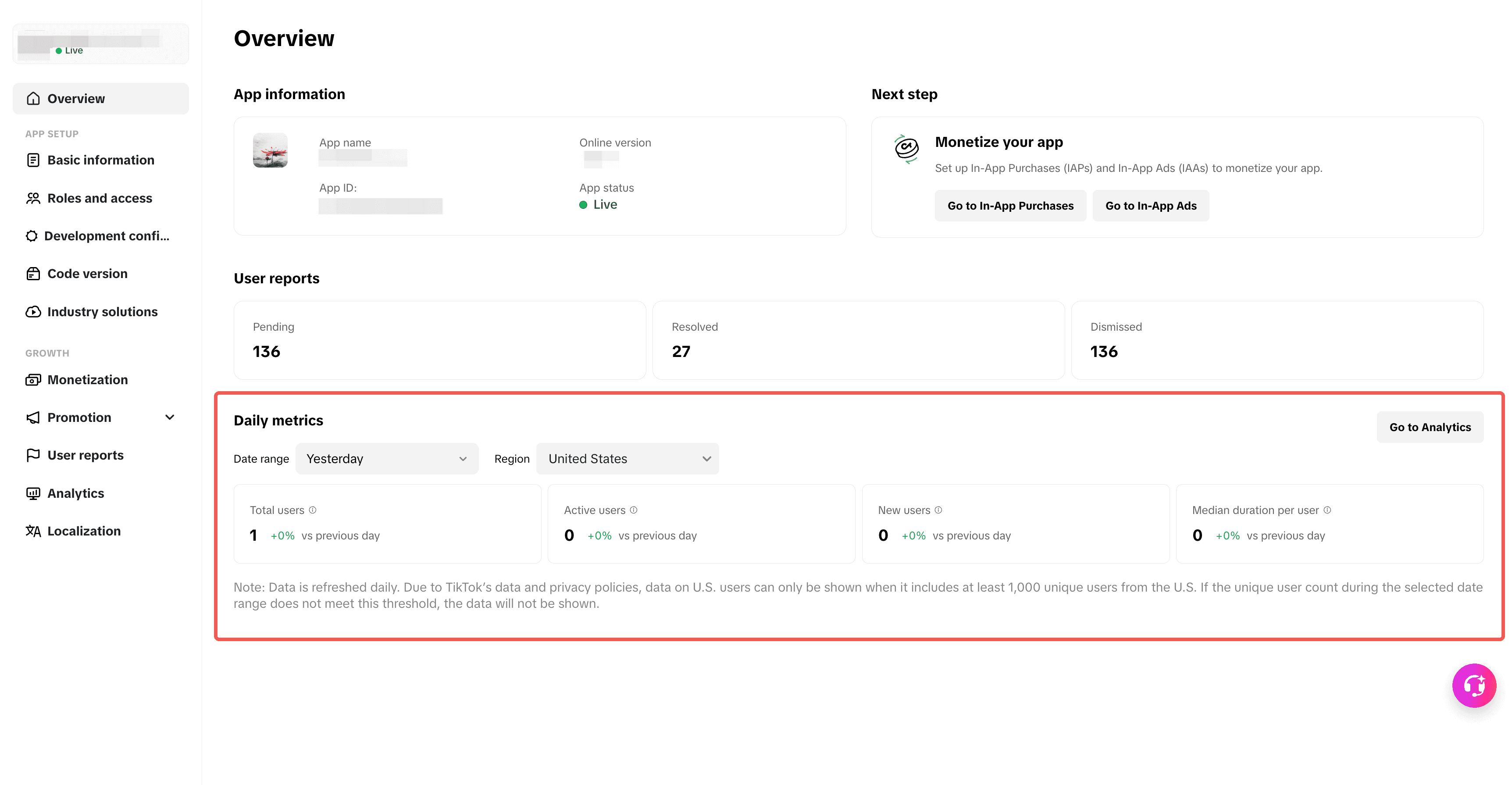
You can further refine your results by setting the Date Range and Region filters.
Metric | Description |
Total users | Total number of users that launched the app at least once till date |
Active users | Number of users who launched the app at least once (including new users) |
New users | Number of users who launched the app for the first time |
Median duration per user | Median time spent in the app per user |
For more detailed analytics, click the Go to Analytics button. This will navigate you to the analytics page for Operations.
Monetization analytics
In-app purchases (IAPs) data for mini dramas is available on your app's Monetization page. IAP analytics allow you to track metrics for both users and orders.
Note: For monetization analytics, data is deduplicated, meaning that redundant or duplicate data has been removed.
In-App Purchases
To find IAP analytics on your app page:
- Navigate to the Monetization dropdown from the sidebar.
- Click the In-App Purchases (IAPs) tab.
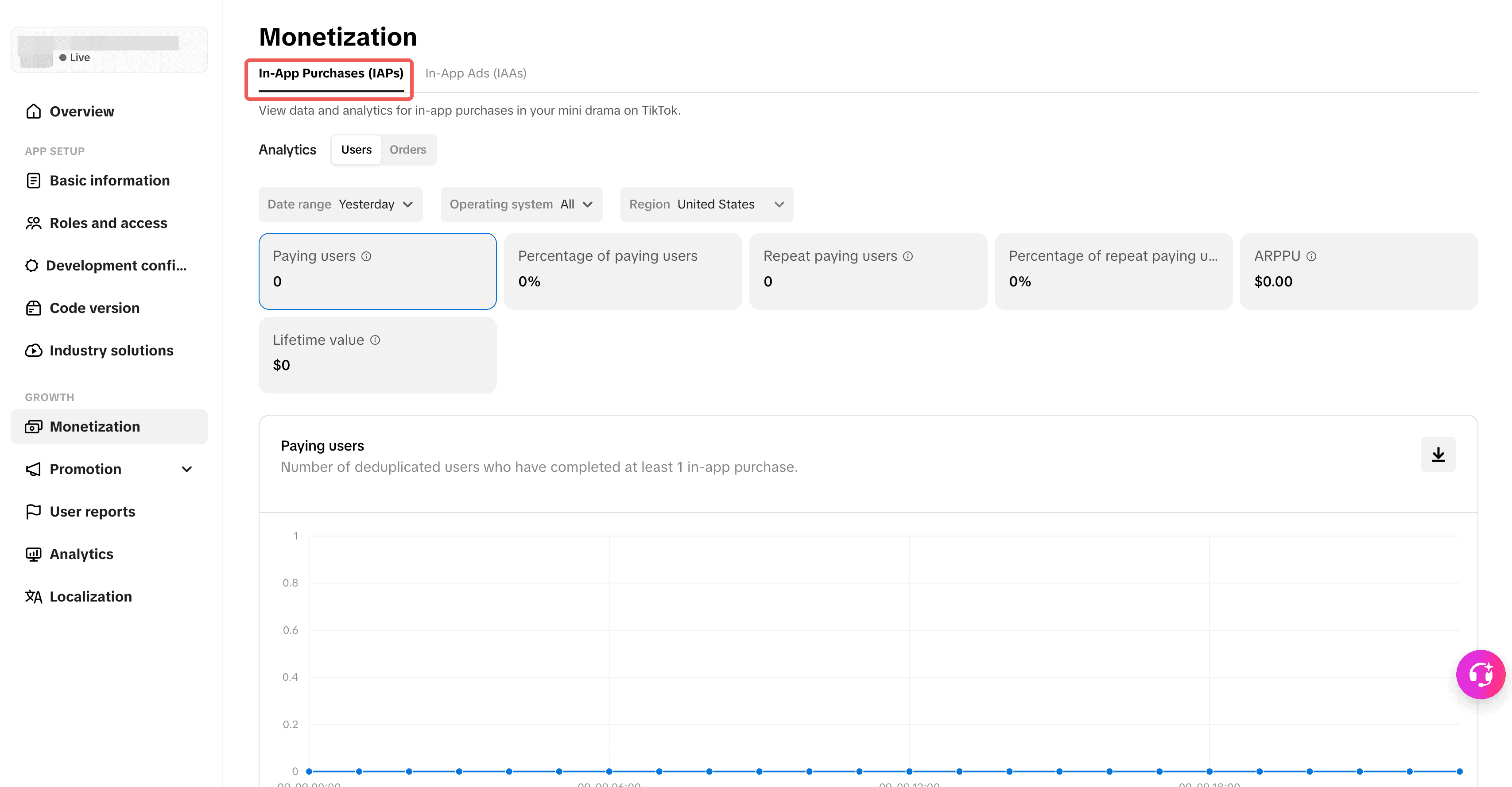
Choose what type of data you want to view by switching the toggle between Users and Orders. For both types of data, you can refine your results by setting the filters:
- Date range
- Operating system
- Region
- Payer type (Orders only)
User analytics
User analytics provides data on users who have made purchases in your mini drama.
Click on any one of the metrics to view it in line graph form. You can also download the data by clicking the Download button in the corner of the graph.
Metric | Description |
Paying users | Number of deduplicated users who have completed at least one in-app purchase |
Percentage of paying users | The proportion of users who have completed at least one in-app purchase |
Repeat paying users | Number of deduplicated users who have completed more than one in-app purchase |
Percentage of repeat paying users | The proportion of users who have completed more than one in-app purchase |
ARPPU | Average revenue per paying user |
Lifetime value | Average sales value generated by new users in the specified date range |
Order analytics
You can also analyze aggregate data for transactions.
Click on any one of the metrics to view it in graph form.
- GMV is viewable as a line chart or a pie chart.
- Redeem orders lets you view the top 10 most ordered products.
You can download the data by clicking the Download button in the corner of the graph.
Metric | Description |
GMV | Gross Merchandise Value (GMV) is the total sales value of the orders |
Average GMV | Average sales value per transaction |
Recharge orders | Number of times users purchased Beans to spend in the app |
Redeem orders | Number of times users used purchased Beans to unlock content |
In-App Ads (IAAs)
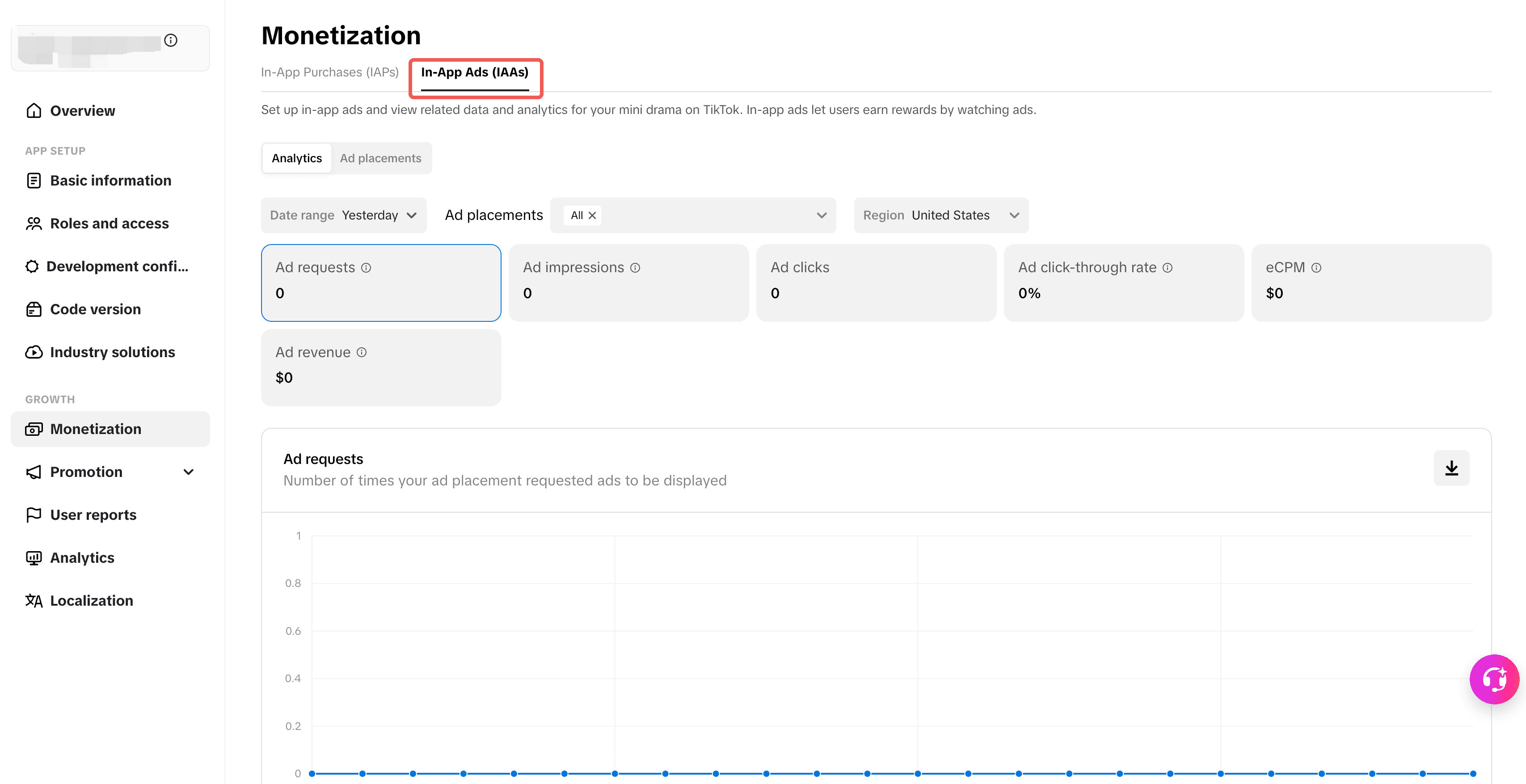
Refine your results by setting the filters:
- Date range
- Ad placements
- Region
Metric | Description |
Ad requests | Number of times your ad placement requested ads to be displayed |
Ad impressions | Number of times an ad is displayed |
Ad clicks | Number of times an ad is clicked |
Ad click-through rate | Percentage of users who clicked on an ad to the total number of users who viewed it |
eCPM | eCPM (effective Cost Per Mille) is the revenue earned per 1,000 ad impressions |
Ad revenue | Revenue generated from ads displayed, after platform fee deduction |
User analytics
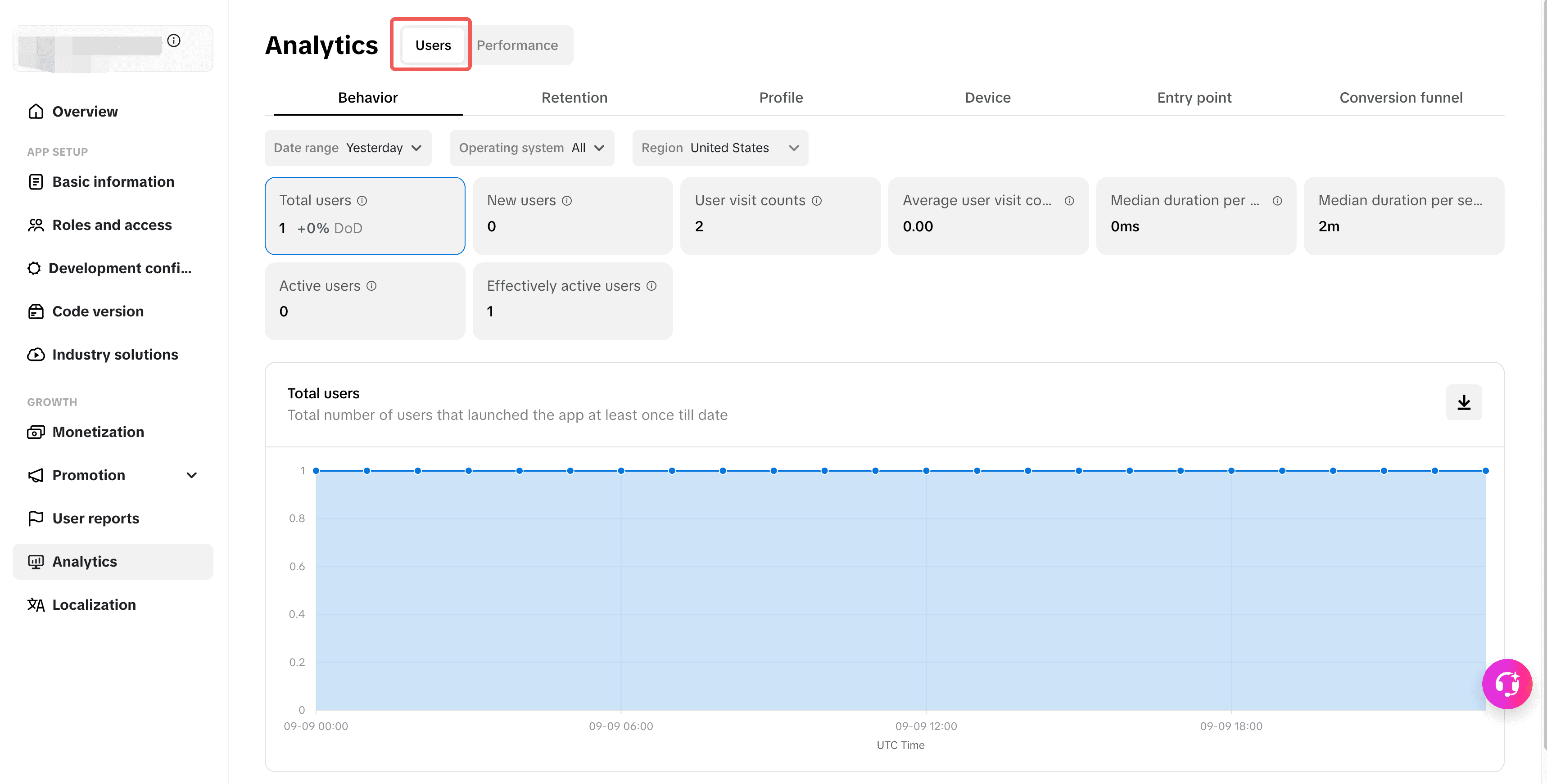
User analytics contains the following categories:
- Behavior
- Retention
- Profile
- Entry point
- Conversion funnel
Each category allows you to refine your results by setting the filters:
- Date range
- Operating system
- Region
- User type (Retention, Profile, and Device only. Selectable options depend on the category.)
- Order type (Conversion funnel only)
Behavior
Metric | Description |
Total users | Total number of users that launched the app at least once till date |
New users | Number of users who launched the app for the first time |
Repeat users | Number of users who launched the app more than once |
User visit counts | Number of times the app was launched |
Average user visit counts | Number of times the app was launched by each user on average |
Median duration per user | Median time spent in the app per user |
Median duration per session | Median time spent in the app per session |
Active users | Number of users who launched the app at least once (including new users) |
Effectively active users | Number of users who launched the app and spent time on it at least once (including new users) |
Retention
Retention is the number of users who remain active for however many days since they first launched the mini app. Select the retention period you want to display data for:
- 1-day
- 7-day
- 14-day
- 30-day
Profile
Profile analytics contain data for the following:
- Gender
- Age
- Region
Device
Device analytics contain data for the following:
- Brand
- Model
- TikTok app version
Entry point
Track where users enter the app. These metrics consider multiple touchpoints throughout the user journey, factoring in all actual interactions and assigning them equal weight.
- Active users
- New users
- Launch sessions
- Average duration per session
Conversion funnel
Evaluate user behavior across each stage of the conversion funnel to identify drop-off points and improve overall conversion rate.
- Entrance Exposure PV
- Entrance Click PV
- TT Minis Visit PV
- Last Free Episode Watch PV
- 3P Payment Panel Show PV
- 3P Payment Panel Click pV
- TT Payment Panel Show PV
- TT Payment Panel Click PV
- Consumption Order Cnt (Topup Order Cnt)
Performance analytics
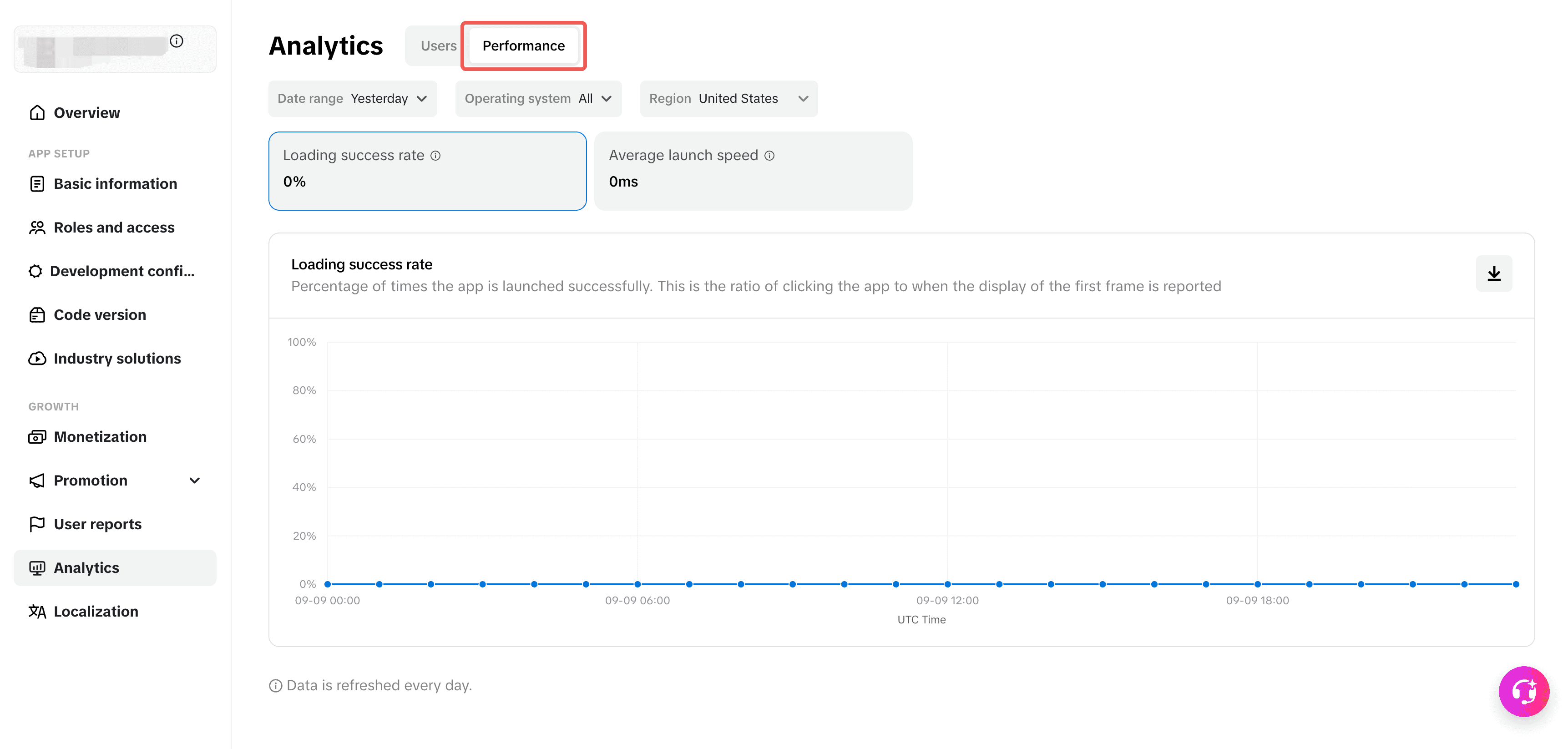
Track your app's launch speed and success rate in the performance analytics section.
Refine your results by setting the filters:
- Date range
- Operating system
- Region
Displayable metrics are defined below.
Metric | Description |
Loading success rate | Percentage of times the app is launched successfully. This is the ratio of clicking the app to when the display of the first frame is reported |
Average launch speed | Average app launch time (in milliseconds) |